

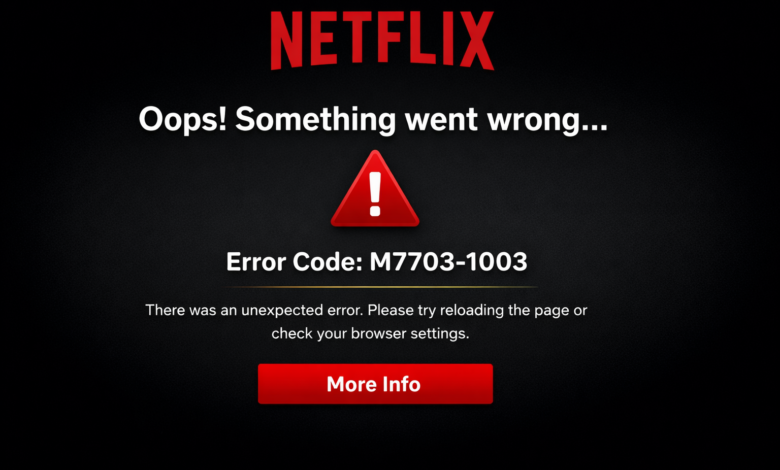
Nothing ruins a peaceful movie night faster than Netflix refusing to play your favorite show and suddenly displaying an error on your screen. One of the most common issues users face while streaming on browsers is the Netflix Error M7703-1003. You open Netflix, select a movie, hit play, and instead of the opening scene, you’re stuck staring at an error message. It’s frustrating, confusing, and feels like a waste of time.
The good news is that Netflix Error Code M7703-1003 is not a serious problem. In most cases, it is caused by browser-related issues, outdated settings, or temporary conflicts on your device. This error commonly appears on Google Chrome, Microsoft Edge, and other Chromium-based browsers. In this blog, you’ll learn why Netflix Error M7703-1003 occurs and how to fix Netflix Error M7703-1003 using simple, step-by-step solutions that work worldwide.
Why does Netflix Error M7703-1003 occur, and how can you fix it?
Understanding the root cause makes fixing the problem much easier. In most cases, Netflix Error M7703-1003 appears due to the following reasons:
- Outdated web browser
- Corrupted browser cache or cookies
- Disabled protected content settings
- Browser extensions interfering with Netflix
- VPN or proxy conflicts
- Outdated device software
- Temporary Netflix server issues
You don’t need technical knowledge to solve this problem. Let’s walk through all the working solutions to fix Netflix Error M7703-1003, step by step.
Fix 1: Restart your browser and device
Sometimes, the simplest solution works best. Temporary glitches in your browser or system can trigger Netflix Error M7703-1003.
You can follow these steps:
- First, close your browser completely.
- Secondly, close all running tabs.
- Now, restart your computer or laptop.
- Lastly, open your browser and try Netflix again.
Many users have reported that restarting the device instantly helps fix Netflix Error M7703-1003 without any extra steps.
Fix 2: Update your web browser
Netflix works best on the latest versions of supported browsers. An outdated browser may not support Netflix’s protected content system, leading to Netflix Error M7703-1003.
You can follow these steps to update your browser:
- Open Google Chrome or Microsoft Edge.
- Go to Settings.
- Navigate to About Browser.
- Install any available updates.
Once the update is complete, restart your browser and try streaming again. Keeping your browser updated is one of the most effective ways to fix Netflix Error M7703-1003.
Fix 3: Enable protected content in your browser
Netflix requires protected content (DRM) to be enabled in your browser settings. If it’s disabled, you’ll likely see Netflix Error M7703-1003.
— For Google Chrome:
- Open Chrome Settings.
- Go to Privacy and Security.
- Click Site Settings.
- Select Additional content settings.
- Enable Protected Content
Restart the browser after making changes. This step is essential to fix the Netflix Error M7703-1003 on Chrome and Edge.
Fix 4: Clear browser cache and cookies
Corrupted cache or cookies can prevent Netflix from loading properly and trigger Netflix Error M7703-1003.
You can clear cache and cookies by following these steps:
- Open your browser settings.
- Go to Privacy and Security.
- Select Clear browsing data.
- Choose Cookies and Cached images/files.
- Click Clear data.
After clearing the cache, log back into Netflix. This solution works well for users facing repeated Netflix Error M7703-1003 issues.
Fix 5: Disable browser extensions
Some browser extensions, especially ad blockers, VPN extensions, and security tools, can interfere with Netflix playback.
You can test this by following these steps:
- Disable all browser extensions.
- Restart your browser.
- Open Netflix and play a video.
If Netflix works without error, re-enable extensions one by one to identify the problematic one. Disabling interfering extensions is a proven way to fix Netflix Error M7703-1003.
Fix 6: Turn off VPN or proxy services
Netflix restricts content based on regions, and VPNs can cause conflicts. If you’re using a VPN, it may trigger Netflix Error M7703-1003.
You can fix this by:
- Turning off your VPN or proxy.
- Restart your browser.
- Trying Netflix again.
Many users see immediate results once VPNs are disabled, especially when trying to fix Netflix Error M7703-1003 during playback.
Fix 7: Try Netflix in Incognito or Private mode
Private browsing disables most extensions and uses fresh cookies, which can help isolate the issue.
You can do this by:
- Opening Incognito mode (Ctrl + Shift + N).
- Logging into Netflix.
- Playing any title.
If Netflix works fine in Incognito mode, the issue is likely related to cache or extensions causing Netflix Error M7703-1003.
Fix 8: Update your operating system
Outdated system software can conflict with browser updates and Netflix DRM requirements.
Make sure your device software is up to date:
- Windows Update.
- macOS Software Update.
- Linux system updates.
System updates include security patches and performance improvements that help fix Netflix Error M7703-1003 permanently.
Fix 9: Switch to a different supported browser
If Netflix Error M7703-1003 keeps appearing on one browser, try switching to another supported browser.
Netflix officially supports:
- Google Chrome
- Microsoft Edge
- Mozilla Firefox
- Safari (on macOS)
Switching browsers often resolves stubborn Netflix Error M7703-1003 problems instantly.
Fix 10: Check your internet connection
A weak or unstable connection can cause Netflix to fail during playback and show error codes.
You can stabilize your connection by:
- Restarting your router.
- Avoid using multiple devices to stream simultaneously.
- Using a wired Ethernet connection.
- Ensuring at least 5 Mbps speed for HD streaming.
Internet stability plays a key role in preventing Netflix Error M7703-1003.
Fix 11: Check Netflix server status
Sometimes the issue is not on your side. Netflix servers may experience temporary outages or maintenance.
Signs of server-related issues include:
- Netflix is not working on multiple devices.
- Error codes are appearing repeatedly.
- Playback is failing for many users.
In such cases, wait for some time and try again later. Server-side Netflix Error M7703-1003 usually resolves automatically.
Fix 12: Reset browser settings
If nothing else works, resetting your browser can remove deep configuration issues causing Netflix Error M7703-1003.
You can reset your browser by:
- Opening browser settings.
- Going to Reset or Restore settings.
- Restoring settings to default.
This removes unwanted changes and often fixes Netflix Error M7703-1003 completely.
How can you prevent Netflix Error M7703-1003 in the future?
To avoid encountering Netflix Error M7703-1003 again, follow these simple habits:
- Keep your browser updated.
- Clear cache regularly.
- Avoid unreliable VPNs.
- Disable unnecessary extensions.
- Keep your system software updated.
These practices ensure smooth Netflix streaming and reduce the chances of errors in the future.
Final Thoughts
Netflix Error Code M7703-1003 can be annoying, especially when you’re ready to relax and enjoy your favorite content. However, this error is usually easy to fix and doesn’t require professional help. Most of the time, the issue is related to browser settings, outdated software, VPN interference, or corrupted cache files.
By following the step-by-step solutions in this guide, you can confidently fix Netflix Error M7703-1003 on your device and return to uninterrupted streaming. Netflix is meant to be simple and enjoyable. Once these issues are resolved, you can sit back, relax, and enjoy your shows without interruptions.
For more information visit on our website : Dolphin Techknology