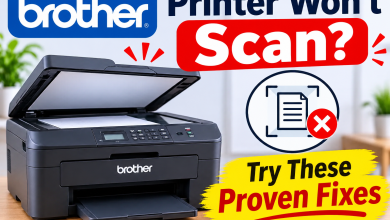

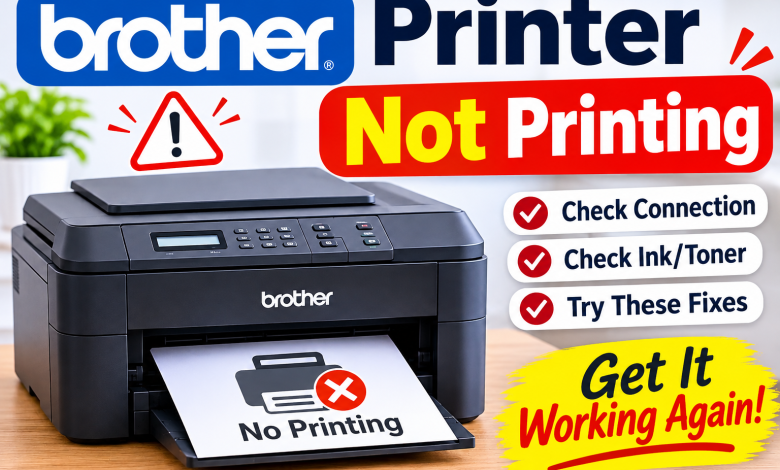
Imagine completing an important document after a lot of struggle, and pressing the Print button, but getting nothing in return. Your Brother printer is switched on, there’s paper in the tray, but your document simply won’t print. Annoying, especially when you’re short on time!
If your Brother printer won’t print, don’t rush to replace cartridges or reinstall everything. The problem could be something as simple as a stuck print job, a lost Wi-Fi connection, or an incorrect printer setting.
In this guide, you’ll learn how to fix Brother printer not printing problems with straightforward steps, so you can find the cause and get back to printing without unnecessary hassle.
How to Fix Brother Printer Not Printing Problems?
Step 1: Check What Your Brother Printer Is Telling You
Before changing any computer settings, look at your printer’s display or LED lights. Your Brother device may be showing the real reason it cannot print.
Check for error messages shown on the screen such as:
- Paper Jam: Remove the jammed paper carefully, following your model’s instructions.
- No Paper: Reload the tray and adjust the paper guides.
- Cover Open: Close the scanner, front, or rear cover securely.
- Replace Toner or Ink Empty: Check the relevant cartridge and replace it if necessary.
If the printer shows Ready but still refuses to print, move to the next step.
Step 2: Do a Print Test Without Using Your Computer
Here is a useful way to resolve the problem slowly: try printing directly from the Brother printer. Depending on the model, you may have to find a test print, printer settings, or print-quality check in its control panel.
- If the test page prints, the printer itself is working. Analyse your computer or connection.
- If it does not print, check the device’s error messages and paper or ink cartridge condition.
- If the page has missing lines or colours, do the appropriate print-head cleaning or print-quality maintenance procedure to resolve the issue.
This simple test can save you from changing working computer settings.
Step 3: Check Whether Your Brother Printer Is Connected Properly
A printer can look ready to you even if the connection to your computer has failed.
For Wi-Fi printing:
- Check the wireless status on the printer’s display.
- Make sure your computer and printer are connected to the intended network.
- If you changed your router or Wi-Fi password, reconnect the printer.
For USB printing:
- Disconnect and reconnect the USB cable.
- Try another USB port.
- Avoid USB hubs while testing.
For wireless problems on supported Windows models, Brother’s Network Connection Repair Tool can help to detect the connection issues and update the printer’s IP address.
Step 4: Check Whether Your Computer Is Sending Output to the Correct Printer
This is easy to overlook. Your computer may be sending the document to an old Brother printer entry instead of the machine you actually use.
- Open the document you want to print.
- Select Print.
- Check the printer name in the list.
- Choose your currently connected Brother printer.
- Check that the selected paper size and print settings are correct.
If you see multiple entries with names such as Brother (Copy 1), verify which one was connected before printing.
Step 5: Clear the Document That Is Blocking Other Print Jobs
Sometimes one failed document prevents everything behind it from printing.
On Windows:
- Open Settings > Bluetooth & devices > Printers & scanners.
- Select your Brother printer.
- Open the print queue.
- Cancel documents that are stuck.
- On Mac, open System Settings > Printers & Scanners, select your printer, and remove stalled jobs from its queue.
Once the queue is empty, send a new one-page document. Avoid repeatedly clicking Print, as this can create duplicate jobs.
Step 6: Fix Brother Printer Settings in Windows
If your Brother printer appears in Windows but does not respond, check its printer status.
- Open the printer’s queue.
- Check the Printer menu for Use Printer Offline.
- Clear the offline option if selected.
- Make sure Pause Printing is disabled.
- Confirm that your Brother printer is selected as the default device if you use it regularly.
- Try printing again after correcting these settings.
Step 7: Update the Brother Driver
A missing or incorrect driver can prevent your computer from sending print instructions properly.
- Find your exact Brother model number.
- Visit Brother’s official website.
- Open its Downloads section.
- Select your operating system.
- Download the recommended driver or Full Driver & Software Package, if available.
- Install it and restart your computer.
Use the driver designed for your model rather than downloading a random driver with a similar name.
Step 8: Find Out Whether the Problem Is With One Document
If your Brother printer prints some files but not others, the printer may not be the problem.
- Open a simple text document and try printing one page.
- If it prints successfully, check the original document’s format, page size, application settings, or any damaged content.
- If the test document also fails, return to the network connection and driver checks.
Final Thoughts
A Brother printer won’t print can have several reasons, but you don’t need to try every setting all at once. Start by checking your printer’s display and run a test page. Then, investigate the network connection, selected printer, print queue, and printer driver. Working through these checks in order makes it easier to find the actual problem and get back to printing online.
Frequently Asked Questions
Q1: Why does my Brother printer show ready but not print?
Ans: Your Brother printer can be ready, but your computer could be sending printing documents to the wrong device or an incorrect printer port. Review the selected printer and clear any stuck jobs.
Q2: How to fix Brother printer not printing from Windows 11?
Ans: To fix a Brother printer on Windows 11, check the printer network connection, select the correct Brother device, clear its print queue, and verify that offline mode is disabled. Install the correct Brother printer drivers if the problem continues.
Q3: Why is my Brother printer printing blank pages?
Ans: Inkjet printers may have clogged print heads or empty ink cartridges. Laser printers may have incorrectly installed toner or drum units. Check the consumables and do a print-quality test.
Q4: Why does my Brother wireless printer not print?
Ans: The printer may have lost its Wi-Fi connection, or its network address may have changed. Check its wireless status and use the Brother’s Network Connection Repair Tool if your printer model supports it.
Q5: Should I factory reset my Brother printer?
Ans: Not as your first step. A factory reset can erase the wireless and custom settings. Check the connection, print queue, and printer driver before considering a reset.
Read More: www.dolphintechknology.com