
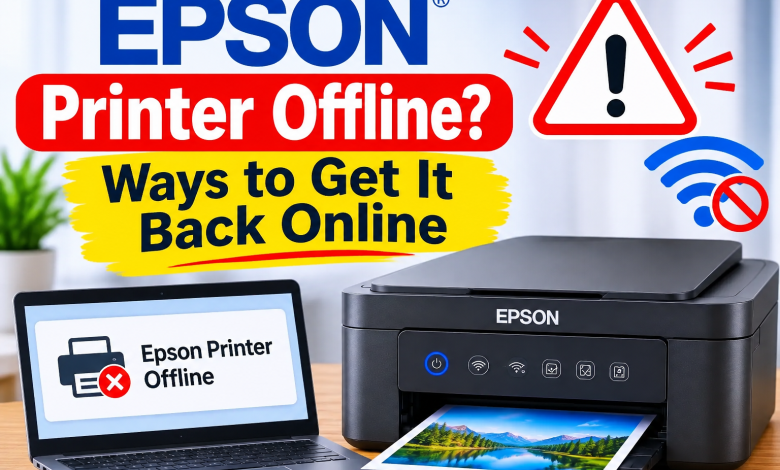
When your Epson printer Offline, your computer cannot connect to it, even if it is switched on. Common causes include lost Wi-Fi, a stuck print queue, incorrect settings, a loose USB cable, or an outdated driver. Try these fixes in order and test printing after each major change. Menu names vary by model and operating system.
Why Does My Epson Printer Go Offline?
The printer may have lost its network connection, connected to a different Wi-Fi network, or been paused in Windows or macOS. Pending print jobs and duplicate printer entries can also cause problems. First, check the printer’s screen and clear any paper, ink, or cover error shown there.
10 Fixes To Bring Epson Printer Offline to Online
Fix 1: Restart the Printer and Computer
- Turn off the Epson printer using its power button.
- Unplug it and wait 30 seconds.
- Reconnect the power, turn it on, and wait until it is ready.
- Restart the computer and print a document.
- Resolve any error displayed on the printer before continuing.
Fix 2: Check the Wi-Fi Connection
- Check the printer’s Wi-Fi indicator or network menu.
- Confirm the printer and computer use the same home or office network.
- If the router, network name, or password recently changed, reconnect the printer using its control panel and model instructions.
- Restart the router if other devices also have connection problems.
- Move the printer closer to the router if the signal is weak.
Guest networks or device-isolation settings may prevent connected devices from communicating. If both devices have internet access but cannot find each other, check the router configuration.
Fix 3: Turn off Use Printer Offline Mode in Windows
- Open Settings > Bluetooth & devices > Printers & scanners on Windows 11.
- Select your Epson printer and open its print queue.
- Open the printer menu, if available.
- Clear Use Printer Offline or Pause Printing if either option is selected.
- Send a test page.
On some Windows versions, these options appear in Control Panel > Devices and Printers. If neither option is selected, continue.
Step 4: Set the Correct Epson Printer as Default
- Open Settings > Bluetooth & devices > Printers & scanners.
- Select the Epson printer you use.
- Choose Set as default, if available.
- If Windows manages the default automatically, turn that setting off before choosing a fixed default.
- Remove duplicate entries only after confirming which printer is active.
Print a test document from your application.
Step 5: Clear Stuck Print Jobs
- Open the Epson printer queue in Windows settings.
- Cancel documents that remain pending or show an error.
- If jobs refuse to clear, press Windows + R, type services.msc, and press Enter.
- Find Print Spooler, right-click it, and select Restart.
- Reopen the queue and send one document.
Restarting the spooler temporarily affects printing for other printers on that computer. Avoid deleting system files unless necessary.
Step 6: Check the USB cable and Port
- Confirm the cable is firmly connected at both ends.
- Connect the printer directly to the computer, not through a USB hub.
- Try another USB port or cable.
- Turn the printer off before reconnecting the cable, then turn it on.
- Check whether it appears in Windows printer settings.
If another port or cable works, the original connection was likely the cause.
Step 7: Update or Reinstall the Epson Driver
- Find the full model name on the printer label or display.
- Visit Epson’s official website and open the downloads page for that model.
- Select your operating system and download the compatible driver or recommended software.
- Follow the installer’s instructions and restart if prompted.
- If the printer remains offline, remove and add it again.
Avoid unfamiliar driver download sites. Software availability varies by model and operating system.
Fix 8: Check the Printer Port
Windows may send jobs to an old port or duplicate network entry.
- Open Control Panel > Devices and Printers, where available.
- Right-click the Epson printer and choose Printer properties.
- Open the Ports tab and check that the selected port matches the USB or network connection.
- Compare the setting with the printer’s connection details before changing it.
- For a wireless printer, remove and add the device again if its network address has changed.
Do not change ports randomly; record the original setting first.
Fix 9: Check the Printer on a Mac
- Open System Settings > Printers & Scanners.
- Select the Epson printer and check its status and queue.
- Resume printing if paused and cancel stuck jobs.
- Confirm the printer and Mac use the same network, or reconnect the USB cable.
- If it remains unavailable, remove the printer and add it again using the available discovery options.
Check Epson’s documentation for your model and macOS version before installing software.
Fix 10: Test the Printer Independently
- Use the control panel to print a nozzle check or status sheet if your model offers this feature.
- If the test prints, focus on the computer, queue, driver, or network connection.
- If it doesn’t print, check the display for paper, ink, cover, or other errors.
- Follow the model’s user guide for the message shown.
Not every Epson printer has the same test procedure.
Final Thoughts
An Epson printer showing Offline often needs a connection, queue, settings, or driver check rather than immediate replacement. Start with a restart and network check, then inspect the print queue and computer settings. Change one thing at a time and test after each fix. For model-specific menus or unusual errors, consult the official Epson manual.
Frequently Asked Questions
Q1: Why is my Epson printer offline but connected to WiFi?
Ans: Wi-Fi alone doesn’t guarantee the computer can reach the printer. Confirm both devices use the same network, then check the queue, selected printer, and network entry.
Q2: How do I get Epson printer offline in Windows 11?
Ans: Open Settings > Bluetooth & devices > Printers & scanners, select the Epson device, and inspect its queue. Clear offline or paused settings if present, restart the printer, and test again.
Q3: Will reinstalling the driver delete my documents?
Ans: Reinstalling a printer driver normally does not remove files saved on your computer. Save open work and follow the installer’s instructions before removing the printer.
Read More: www.dolphintechknology.com