
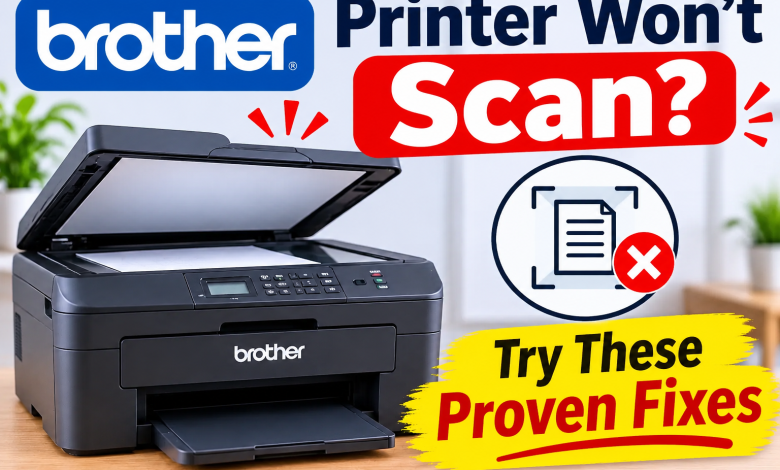
You put an important document on the Brother printer, press Scan, and wait for it to pop up on your PC. But nope, nothing happened. It feels very frustrating when you want that document urgently. If your Brother Printer Won’t Scan, the issue could be a missing scanner driver, incorrect software settings, network discovery, or firewall permissions. You can still print because scanning uses different software and communication components.
What To Do Before Fixing Brother Printer Won’t Scan
Before changing any network settings, first identify what is happening:
- Your PC can’t detect the scanner: Check the connection and scanner driver.
- You can scan from the PC, but not from the Scan button: Check ControlCenter and push-scanning settings.
- Brother printer not scanning to PC via WiFi: Review the network discovery and all firewall permissions.
- Scanning is complete, but no file popped up: Confirm the save location and file format.
Now Try These 9 Fixes Brother Printer Won’t Scan Issue
Fix 1: Check the WiFi or USB connection
Start by verifying the connection before reinstalling software.
- For USB, reconnect the cables at both ends and try connecting to another PC port.
- For Wi-Fi, verify that the printer and PC are on the same network.
- Check the printer’s display for any connection errors.
- Restart the printer and PC, then test the scanning process again.
If the Brother printer not scanning, perform the scanner software basic checks.
Fix 2: Open Brother iPrint&Scan
Brother iPrint&Scan is the manufacturer’s scanning application for many compatible models.
- Click on Brother iPrint&Scan on your PC.
- Select your Brother printer if it cannot be detected automatically.
- Put a document on the scanner glass or in the document feeder.
- Click on Scan and test the result.
- If the app is unable to find your printer, check its network connection and software installation.
- Download the compatible version from Brother’s official website.
Fix 3: Install or Select the Correct Scanner Driver
A printer driver does not always provide the scanner functionality that your PC needs. This explains why your Brother printer not scanning on the PC.
On Windows 11:
- Open the recommended scanning application.
- Check the available scanner sources.
- Select the Brother TWAIN or WIA driver.
- If nothing appears, download the suitable Scanner Driver or Full Driver & Software Package.
On Windows 10:
- Check whether your Brother scanner appears in the scanner list or not.
- If it doesn’t appear, install the correct scanner driver from Brother’s official downloads page.
- Restart the PC after installation and try again.
Fix 4: Resolve Scanning From the Printer’s Scan Button
If scanning works from the PC but refuses when you press the Scan button, check the Brother scanning software.
- Open the Brother Utilities from the Windows Start menu.
- Select ControlCenter or ControlCenter4, if your exact model uses it.
- Make sure the printer application is running.
- Verify the scanning destination and PC name.
- Try pressing the printer’s Scan button again.
Some newer models use different software, so you need to follow the instructions for your device.
Fix 5: Check Firewall Permissions
A firewall mostly blocks the connection between your Brother printer and PC during network scanning.
Check whether your security software supports the relevant Brother applications, such as:
- Brother iPrint&Scan.exe
- BRCTRLCNTR.EXE
- iPSNotifier.exe
Only allow the applications needed by your model. Try not to permanently disable the firewall.
Fix 6: Allow Local Access on Mac
On macOS 15 or later, privacy settings can stop Brother iPrint&Scan from searching a network printer.
- Open the Apple menu > System Settings.
- Select Privacy & Security > Local Network.
- Look for Brother iPrint&Scan.
- Enable network access if it is disabled.
- Reopen the Brother application and try scanning again.
For some suitable models, scanning through the Scan button may also need Brother’s iPrint&Scan Push Scan Tool.
Fix 7: Confirm the Network Scanner Address
If your Brother printer uses the Wi-Fi or Ethernet connection, a changed IP address can stop your PC from searching for its scanner.
- Look for the printer’s current IP address through the network settings or configuration report.
- Confirm that your PC is properly connected to the required network.
- Check whether the scanning application is using an old device address.
- Update the scanner configuration if necessary.
On some compatible models, network discovery may depend on Bonjour communication. Check your router configuration if Mac scanning fails instead of a working connection.
Fix 8: Confirm the Scan Detection
Sometimes the scan completes successfully, but the file is still saved somewhere unexpected.
- Open the Brother iPrint&Scan or the scanning app.
- Check the selected destination folder where the document can be saved.
- Confirm the file format, such as PDF or JPEG.
- Make sure the PC has enough free storage.
- Scan one page and check the saved file.
Fix 9: Reinstall the Brother Scanner Software
If the scanner remains undetected, its software installation might be damaged.
- Remove the Brother printer from Windows Settings > Bluetooth & devices > Printers & scanners or Mac System Settings > Printers & Scanners.
- Restart your PC.
- Download the correct scanner software for your Brother model and operating system.
- Reinstall it and re-add the printer again.
- Test scanning through Brother iPrint&Scan.
Conclusion
When your Brother Printer Won’t Scan to PC, start by checking its connection and scanner driver. Then check Brother iPrint&Scan, ControlCenter, firewall permissions, and network settings. If the problem continues, reinstall the correct scanner software for your exact printer model.
Work through the fixes one by one to find the reason without making unnecessary changes.
Frequently Asked Questions
Q1: Why is my Brother Printer Won’t Scan to PC?
Ans: Missing scanner drivers, blocked network communication, or incorrect software settings may prevent scanning. Check the connection and the Brother TWAIN or WIA driver first.
Q2: Why can my Brother printer print but not scan?
Ans: Printing and scanning use different drivers and software components. A working print connection does not guarantee that the scanner is correctly installed or detected.
Q3: Why does my Brother printer scan from PC but not from its Scan button?
Ans: ControlCenter or the required push-scanning application may not be running. Check your model’s scan-button settings and software requirements.
Q4: How do I scan with a Brother printer on Windows 11?
Ans: Install the compatible Brother scanner driver, open Brother iPrint&Scan, select your device, place your document on the scanner, and choose Scan.
Read More: www.dolphintechknology.com