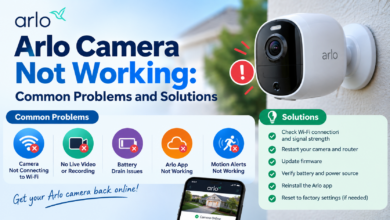

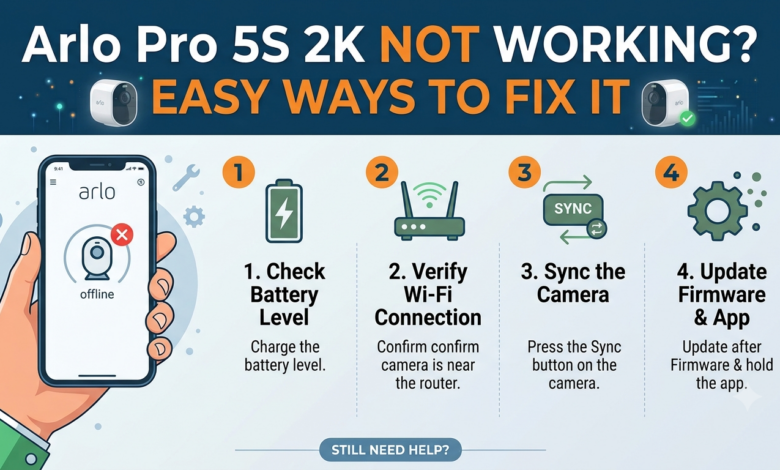
Is your Arlo Pro 5S 2K camera not working, showing offline, or refusing to load live video? The problem may be caused by a weak Wi-Fi signal, low battery, outdated software, or an incomplete setup.
Before replacing your camera or performing a factory reset, try a few basic checks. The following solutions will guide you on how to troubleshoot common Arlo Pro 5S 2K problems and get your camera working again.
Why Is My Arlo Pro 5S 2K Not Working?
Several issues can affect your camera’s performance, including:
- Low battery or charging problems.
- Weak Wi-Fi or unstable internet access.
- Incorrect network settings.
- Outdated firmware or app software.
- Failed setup or pairing.
- Temporary Arlo service interruptions.
- SecureLink connectivity problems.
Identifying the exact symptom will help you choose the right solution.
How to Fix Arlo Pro 5S 2K Not Working Issues
1: Check the Battery and Power
A low battery may prevent your Arlo camera from working reliably.
- Open the Arlo Secure app and check the battery level. If it is low, recharge the camera using a compatible charging method.
- Make sure the battery is installed correctly and inspect the charging cable for visible damage. If charging fails, try a compatible cable or adapter.
- Allow the camera to charge before testing it again.
- Never interrupt an active firmware update.
2: Fix Wi-Fi Connection Problems
If your Arlo Pro 5S 2K keeps going offline, a weak wireless signal may be responsible.
- Check whether your internet connection works on other devices.
- Restart your router if necessary, then move the camera closer to it temporarily.
- If the connection improves, distance or wireless interference may be causing the problem.
- Avoid placing the camera behind thick walls or near devices that interfere with Wi-Fi.
- If you use an Arlo SmartHub or base station, confirm that it is online and that the camera is within range.
3: Check Your Wi-Fi Settings
The Arlo Pro 5S 2K requires a 2.4 GHz Wi-Fi connection during initial setup. After installation, it can also use a compatible 5 GHz connection.
If your camera will not connect to Wi-Fi:
- Connect your phone to the router’s 2.4 GHz network.
- Open the Arlo Secure app.
- Follow the camera setup instructions.
- Enter the correct Wi-Fi password.
- Complete the setup process.
4: Restart the Camera and Arlo App
Temporary software errors can stop the Arlo Secure app from communicating with your camera.
- Close and reopen the app.
- Restart your phone if the problem continues.
- You can also restart your router if other devices experience connectivity issues.
- To restart the camera, follow Arlo’s instructions for your model. If the battery is removable, remove and reinstall it as directed.
- Wait for the camera to reconnect before testing live video. Avoid removing the battery during a firmware update.
5: Update Arlo Firmware and App
Outdated software can contribute to camera performance and compatibility problems.
- Open your phone’s app store and check whether an Arlo Secure app update is available.
- Install it if necessary.
- Arlo cameras generally receive firmware updates automatically when they meet the required conditions.
- Keep your camera online, ensure the battery is sufficiently charged, and allow updates to finish.
- If the camera remains offline, restore its connection before attempting further firmware troubleshooting.
Step 6: Fix Live View and Video Problems
Is your Arlo Pro 5S 2K online but not showing live video? The problem may involve limited bandwidth, a weak Wi-Fi signal, or an app issue.
Try these steps:
- Test your internet connection.
- Reduce other devices’ network activity temporarily.
- Move the camera closer to the router.
- Close and reopen the Arlo Secure app.
- Check the official Arlo service-status page for reported outages.
- If live streaming still fails, test another compatible phone or network when possible.
This can help identify whether the issue is related to the camera, app, or internet connection.
Step 7: Troubleshoot Setup and SecureLink
If the camera fails during setup, check your Wi-Fi password, phone permissions, and network frequency.
- Follow the app’s QR-code instructions carefully and keep the camera near the router while pairing.
- If your camera uses SecureLink with an Arlo Keypad Sensor Hub, confirm that both devices are online and within the recommended range.
- Move nearby electronic devices away if interference is suspected.
- Follow Arlo’s official SecureLink troubleshooting instructions before changing advanced settings or resetting paired devices.
Step 8: Remove and Reinstall the Camera
If none of the previous solutions work, reinstalling the camera may resolve persistent configuration problems.
- Before removing the camera from your account, remember that you will need to complete setup again.
- Follow the removal instructions in the Arlo Secure app, then add the camera and reconnect it to the appropriate network.
- Test live video and recording after setup.
- Use a factory reset only as a last resort, following the instructions for your exact model. If the camera still fails, contact Arlo support with the error details.
Frequently Asked Questions
Q1: Why is my Arlo Pro 5S 2K offline?
Ans: A weak Wi-Fi signal, low battery, router problem, or service interruption may cause your camera to go offline. Check power and connectivity first.
Q2: Why won’t my Arlo Pro 5S 2K connect to Wi-Fi?
Ans: Check that your phone uses the correct 2.4 GHz network during initial setup. Verify the password and follow the instructions in the Arlo Secure app.
Q3: Why is my Arlo camera not showing live video?
Ans: Weak connectivity, limited bandwidth, app problems, or a service interruption may prevent live streaming. Test your internet connection and restart the app.
Q4: Should I factory-reset my Arlo camera?
Ans: Resetting should be a last resort. Check the battery, Wi-Fi, app, and firmware before resetting the device.
Conclusion
When your Arlo Pro 5S 2K is not working, start by checking the battery, Wi-Fi connection, and camera status. Then troubleshoot the app, firmware, live streaming, and setup.
These steps can help identify common problems without unnecessary resets. If the camera remains offline or fails to stream, consult Arlo’s official documentation or contact its support team for model-specific assistance.
Read More: www.dolphintechknology.com