
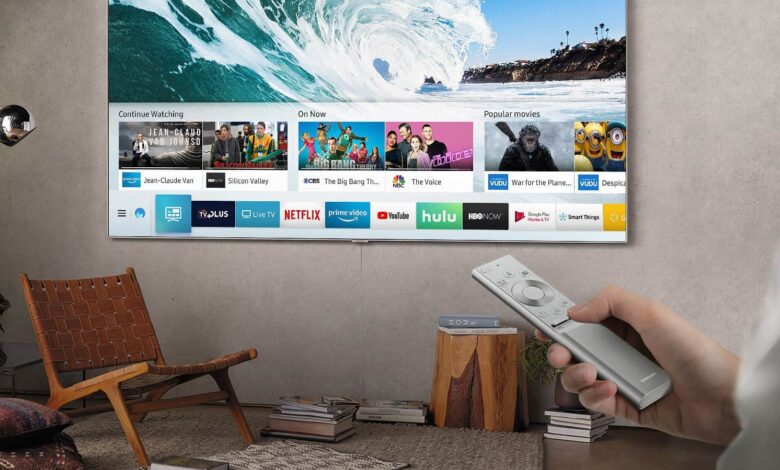
Android TV has become one of the most popular platforms for home entertainment. With it, you can stream shows, movies, music, and even play games, all from the comfort of your living room. But while the Google Play Store on Android TV offers thousands of apps, sometimes you may want to install apps that are not officially available there. This process is known as sideloading third-party apps.
However, installing apps outside the Play Store requires caution. Doing it incorrectly or carelessly can expose your device to security risks. That’s why it’s important to know how to install third-party apps safely on Android TV without compromising performance or privacy.
This article will guide you through every step, explain the best practices, and highlight the potential risks so you can enjoy more apps with confidence.
Why People Install Third-Party Apps on Android TV?
The Google Play Store on Android TV already offers a wide range of apps, but it doesn’t include everything. Some apps might be available only for mobile phones, while others may be restricted in your country. Here are the most common reasons people sideload apps:
- Access to unavailable apps – Some apps aren’t published in the Android TV Play Store but work perfectly well when sideloaded.
- Regional restrictions – Certain streaming apps are limited to specific countries. Installing them manually helps bypass these restrictions if you’re traveling or living abroad.
- Beta testing or early access – Developers sometimes share APK (Android Package) files before official release.
- Specialized apps – Tools, media players, or customization apps may only be available as APK files.
While these reasons are valid, sideloading should never be done carelessly. Safe installation ensures your device stays secure and your personal information remains protected.
What Are Third-Party Apps and APK Files?
When you install an app from the Google Play Store, the process feels simple and secure. But behind the scenes, the app itself comes in a format called an APK (Android Package) file.
A third-party app in this context means an APK file that you download from somewhere other than the Play Store. For example:
- Downloading an APK from the developer’s official website.
- Installing from a trusted alternative app store.
- Transferring the APK file from another device.
Since APK files can contain anything—including malware—it’s important to ensure you only download them from trusted and reputable sources.
The Safety Risks of Sideloading
Before learning how to install third-party apps, you should understand the risks:
- Malware and Viruses – An unsafe APK may include harmful code that steals your data or damages your TV.
- Unwanted Permissions – Some apps may request unnecessary access to your files, microphone, or camera.
- Performance Issues – Poorly optimized apps may crash, freeze, or slow down your Android TV.
- No Automatic Updates – Unlike Play Store apps, sideloaded apps won’t update automatically. You’ll need to install new versions manually.
These risks don’t mean sideloading is unsafe by default—it just means you must follow the correct steps and be selective about where you get your apps.
Preparing Your Android TV for Third-Party Apps
By default, Android TV blocks installations from unknown sources to protect users. To sideload apps, you’ll need to make some adjustments in the settings.
Here’s how to prepare your TV safely:
- Enable Unknown Sources for Specific Apps
- Go to Settings on your Android TV.
- Navigate to Device Preferences > Security & Restrictions.
- Select Unknown Sources.
- Choose which apps (like File Manager or Downloader) are allowed to install APKs.
It’s best to enable this option only for trusted apps and turn it off again after installation.
- Install a File Manager or Downloader App
You’ll need an app that can handle APK files. Popular and safe options include:
Downloader by AFTVnews- File Commander
- Solid Explorer
These apps make it easy to transfer or download APK files to your Android TV.
Methods to Install Third-Party Apps on Android TV Safely
There are several safe ways to sideload apps onto your Android TV. Below are the most commonly used methods, explained step by step.
Method 1: Using the Downloader App
The Downloader app is one of the safest and simplest tools for installing APKs. Here’s how:
- Install Downloader from the Google Play Store on your Android TV.
- Open the app and grant it permission to install unknown apps.
- Enter the URL of the APK file from a trusted source.
- Download the file and select Install.
- Once installed, you can delete the APK to save space.
This method works well for users who want to directly download apps without transferring files from another device.
Method 2: Transferring via USB Drive
If you already have the APK file on your computer or phone, you can use a USB stick:
- Download the APK file on your PC or smartphone.
- Transfer it to a USB drive.
- Plug the USB drive into your Android TV.
- Open a File Manager app to locate the APK file.
- Select it and press Install.
This method is reliable if you prefer offline installation or if your TV doesn’t have a strong internet connection.
Method 3: Using Cloud Storage Services
Cloud storage platforms like Google Drive or Dropbox can also be used:
- Upload the APK file from your computer or phone to your cloud storage.
- Open the same cloud storage app on your Android TV.
- Locate the file and download it.
- Use a File Manager to run the APK and install it.
This method is useful if you want to install the same app on multiple devices easily.
Method 4: Transferring via Apps Like Send Files to TV
Apps like Send Files to TV are specifically designed for quick file transfers:
- Install the Send Files to TV app on both your smartphone and Android TV.
- Open the app on both devices.
- Send the APK file from your phone to your TV.
- Once received, open it using a File Manager and install.
This is one of the most convenient methods for users who regularly sideload apps.
Best Practices for Safe Installation
Now that you know the different methods, let’s focus on how to keep the process secure:
- Download only from Trusted Sources
Stick to official developer websites or reputable platforms like APKMirror. Avoid shady links or unknown forums. - Check App Permissions
After installation, review the app’s permissions. If an app asks for access it doesn’t need (like a calculator wanting microphone access), consider uninstalling it. - Use Antivirus or Security Tools
While Android TV doesn’t have the same risks as phones, installing a lightweight security app can add extra protection. - Keep Your TV Updated
Regularly check for Android TV firmware updates. Updates often fix security vulnerabilities that unsafe apps could exploit. - Update Apps Manually
Since sideloaded apps don’t auto-update, you’ll need to check for new versions periodically. Installing updates helps fix bugs and patch security holes. - Limit the Number of Sideloaded Apps
Only install apps you genuinely need. The fewer apps from outside sources you have, the lower your risk exposure.
Signs of Unsafe or Problematic Apps
Even with precautions, you may sometimes encounter an unsafe app. Here are warning signs to look out for:
- The app crashes frequently or slows down your TV.
- You notice unexpected ads appearing in other apps or on the home screen.
- Your internet data usage spikes without explanation.
- The app requests unnecessary permissions during or after installation.
If you notice any of these issues, uninstall the app immediately.
Alternatives to Sideloading
In some cases, you may want to avoid sideloading altogether. Here are safe alternatives:
- Official Google Play Store Updates – Sometimes, waiting a bit longer brings the app officially to Android TV.
- Casting from Smartphone – Many apps that aren’t on Android TV support casting via Chromecast.
- Streaming Devices – Devices like Chromecast with Google TV, Fire TV Stick, or Nvidia Shield often support a wider range of apps with safer installation options.
Final Thoughts
Installing third-party apps on Android TV opens up a whole new world of possibilities. It allows you to enjoy apps that aren’t available in the Play Store, explore advanced features, and customize your entertainment system. But with this freedom comes responsibility.
By following the methods and safety practices outlined in this guide—such as enabling unknown sources only when needed, downloading from trusted platforms, checking permissions, and keeping your device updated—you can sideload apps with confidence.
Remember, the goal is not just to expand your Android TV’s capabilities but also to ensure your safety, privacy, and long-term performance. Approach sideloading carefully, and your Android TV will remain both versatile and secure for years to come.
For more information visit on our website : Dolphin Techknology