How to Connect Brother Printer to Wi-Fi: Easy Setup Guide

You have just bought a Brother printer, turned it on, and now you want to print wirelessly. Sounds simple, right? But things can quickly become confusing when your Brother printer won’t connect to Wi-Fi, the network does not appear, or the printer keeps showing that it is not connected.
The good news is that connecting a Brother printer to Wi-Fi is usually straightforward. The main thing is to make sure your printer, router, and computer or phone are communicating with the same wireless network.
Whether you are setting up your printer for the first time or reconnecting it after changing your router, the steps below can help you get started.
What you need before connecting your Brother printer to Wi-Fi
Before changing any settings, make sure you have everything needed for the wireless setup.
Check these things first:
- Your Brother printer is turned on.
- You know the name of your Wi-Fi network.
- You know your Wi-Fi password.
- Your router is working properly.
- Your computer or phone is connected to the same Wi-Fi network.
- The Brother printer is placed close enough to the router.
If you recently changed your Wi-Fi password or bought a new router, you may need to connect the Brother printer to the new network again.
How to connect Brother printer to Wi-Fi?
Most Brother printers can be connected to Wi-Fi directly from the printer’s control panel. The exact menu names can vary slightly depending on your Brother printer model, but the basic process is similar.
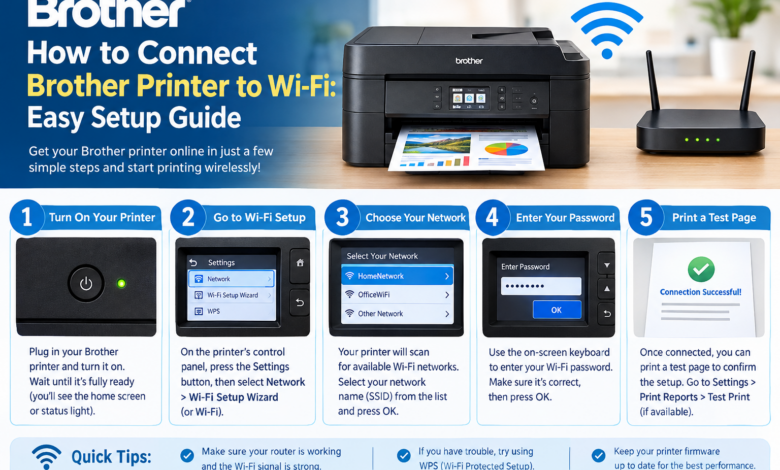
Step 1: Turn on your Brother printer
- Start by turning on the Brother printer.
- Wait until the printer finishes starting up.
- If you see an error message, paper jam warning, or another problem on the display, fix it before starting the Wi-Fi setup.
A printer that is not ready may have trouble completing the wireless connection.
Step 2: Open the Network settings
- On the printer’s control panel.
- Look for the Menu, Settings, or Network option.
- Open the network settings and look for an option such as: WLAN → Setup Wizard
- On some Brother models, the wording may be slightly different.
The Setup Wizard searches for nearby wireless networks and allows you to choose the network you want to use.
Step 3: Select your Wi-Fi network
- Once the printer finishes searching, you should see a list of available Wi-Fi networks.
- Find your home or office Wi-Fi network and select it.
- Make sure you choose the correct network.
- If several networks have similar names.
- Selecting the wrong one can make it appear as if the Brother printer won’t connect to Wi-Fi.
Step 4: Enter the Wi-Fi password
After selecting your network, the printer will ask for the Wi-Fi password.
Enter it carefully because even one incorrect character can stop the connection.
Pay attention to:
- Capital and lowercase letters
- Numbers
- Special characters
- Spaces
Once you enter the password, confirm the connection. The printer may take a few moments to connect to the router.
Step 5: Check the wireless connection
- After the setup is complete, look for a message confirming that the printer is connected.
- You may also see a Wi-Fi symbol or wireless status on the printer’s display.
- Now try printing a test page.
- You can also check the printer’s network status to make sure the connection is working properly.
How to connect Brother printer to Wi-Fi using WPS?
If your Brother printer and router support WPS, you may be able to connect them without manually entering the Wi-Fi password.
Here is how it generally works:
- Turn on the Brother printer.
- Open the printer’s Network or WLAN settings.
- Select the WPS option.
- Press the WPS button on your wireless router.
- Wait while the printer connects to the network.
- Check the printer display for a successful connection message.
The exact WPS steps can vary by Brother printer model, so check the instructions for your specific model if the option is not available.
How to connect Brother printer to Wi-Fi on Windows?
Once the printer is connected to Wi-Fi, you need to add it to your Windows computer.
Follow these steps:
- Open Settings on your Windows computer.
- Go to Bluetooth & devices.
- Select Printers & scanners.
- Click Add device.
- Wait for Windows to find your Brother printer.
- Select the printer and follow the instructions on the screen.
If Windows does not find your printer, make sure the computer and printer are connected to the same Wi-Fi network.
You may also need to install the correct Brother printer driver before the printer works properly.
How to connect Brother printer to Wi-Fi on Mac?
Connecting your Brother printer to a Mac is also simple once the printer is already connected to your wireless network.
Try these steps:
- Open the Apple menu.
- Select System Settings.
- Open Printers & Scanners.
- Click Add Printer, Scanner, or Fax.
- Select your Brother printer from the list.
- Follow the instructions to complete the setup.
If the Brother printer does not appear, check the Wi-Fi connection on both devices and restart the printer and router.
Why won’t my Brother printer connect to Wi-Fi?
Sometimes the Brother printer does not connect even when you have followed the correct setup steps. This can happen for several simple reasons.
Common causes include:
- Incorrect Wi-Fi password.
- Printer and computer are using different networks.
- Weak Wi-Fi signal.
- Router connection problems.
- Outdated Brother printer drivers.
- Recently changed Wi-Fi password.
- Printer connected to an old network.
- Temporary communication problem between the printer and router.
- Using a guest Wi-Fi network.
Before making major changes, restart your printer and router and try the connection again.
What to do if Brother printer won’t connect to Wi-Fi?
If your Brother printer won’t connect to Wi-Fi, try these fixes one by one:
Fix 1: Restart the printer and router
- Turn off your Brother printer and router.
- Wait around 30 seconds, then turn them back on.
- Once both devices are ready, try connecting the printer again.
Fix 2: Check the Wi-Fi password
- A wrong password is one of the easiest problems to overlook.
- Re-enter the password carefully,
- Make sure you are connecting to the correct network.
Fix 3: Keep the printer closer to the router
- If the printer is far away from the router, the wireless signal may be too weak or unstable.
- Move the printer closer temporarily and try the setup again.
Fix 4: Check the network on your computer
- Your computer and Brother printer should normally be connected to the same Wi-Fi network when you want to print wirelessly.
- If your computer is connected to a different network, Windows or Mac may not find the printer.
Fix 5: Reconnect the Brother printer
- If you recently changed your router, Wi-Fi name, or password, reconnect the Brother printer using the WLAN Setup Wizard.
- The printer may still be trying to use your old wireless network.
How to check if Brother printer is connected to Wi-Fi?
After completing the setup, print a network configuration or wireless report if your Brother printer provides that option.
You can also check the Wi-Fi symbol or wireless status on the printer’s display.
If the printer shows a successful wireless connection but your computer cannot find it, the problem may be with the computer’s printer settings or driver rather than the Wi-Fi connection itself.
Final Words
Connecting a Brother printer to Wi-Fi does not have to be complicated. Start by checking your Wi-Fi name and password, connect the printer through its WLAN settings, and then add the printer to your Windows PC or Mac. Once the wireless connection is working properly, you can print without keeping a USB cable connected to your computer.
FAQs
Q1: How do I connect my Brother printer to Wi-Fi?
Ans: Open the Network or WLAN settings on your Brother printer, select your Wi-Fi network, enter the password, and wait for the printer to confirm the connection.
Q2: Why won’t my Brother printer connect to Wi-Fi?
Ans: The problem may be caused by an incorrect Wi-Fi password, weak signal, different networks, router problems, or the printer still being connected to an old network.
Q3: Can I connect my Brother printer to Wi-Fi without a USB cable?
Ans: Yes, if your Brother printer supports wireless networking, you can normally connect it directly to your Wi-Fi network through the printer’s Network or WLAN settings.
Q4: How do I connect my Brother printer to Wi-Fi on Windows?
Ans: First, connect the Brother printer to your Wi-Fi network. Then open Windows Settings, go to Bluetooth & devices > Printers & scanners, select Add device, and choose your Brother printer.
Read More: www.dolphintechknology.com