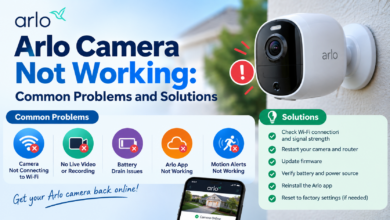

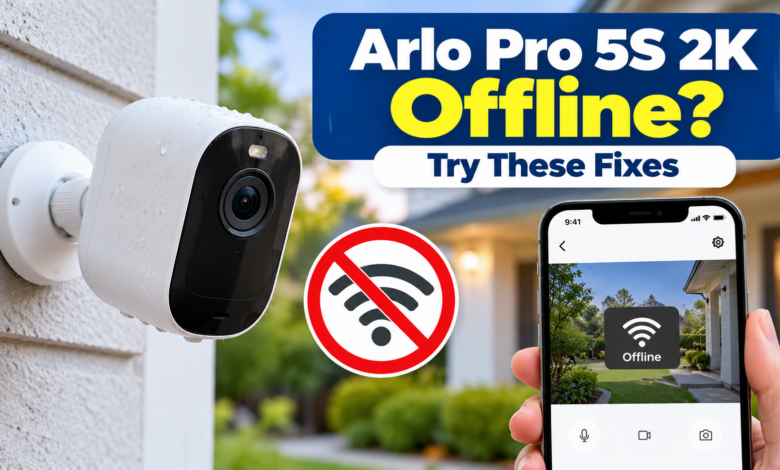
When your Arlo Pro 5S 2K Offline camera goes offline, you may lose access to live video, motion alerts, and remote monitoring. The camera might disconnect because of a weak Wi-Fi signal, a low battery, incorrect network settings, or a problem with your router or Arlo hub.
Before resetting the camera or removing it from your account, identify where the connection is failing. These troubleshooting steps can help you bring your Arlo Pro 5S 2K back online and reduce the repeated disconnections.
Why Is My Arlo Pro 5S 2K Offline?
Your Arlo Pro 5S 2K may appear offline for many reasons:
- Weak Wi-Fi Signal: Walls, metal objects, and long distances can interfere with the wireless connection.
- Low Battery: A low battery can affect camera operation and cause connection problems.
- Internet Issues: Your router may have lost its internet connection.
- Incorrect Wi-Fi Settings: A changed password or router replacement can prevent the camera from reconnecting.
- Hub Connection Problems: If your camera uses an Arlo hub or SecureLink, the hub may be offline or out of range.
- Temporary Software Issues: The camera or Arlo Secure app may need to be restarted or updated.
Check the camera’s connection method first. The Arlo Pro 5S 2K can connect directly to a compatible Wi-Fi router or use a compatible Arlo hub.
The troubleshooting steps differ depending on your setup.
How to Fix Arlo Pro 5S 2K Offline?
Fix 1: Check the Camera Battery
Start by checking the battery level in the Arlo Secure app. A low charge may affect connectivity, particularly when the camera is already struggling with a weak signal.
- Remove the camera from its mount if necessary and recharge it using a compatible charging accessory.
- Check that the battery is properly installed and that the camera powers on.
- After charging, open the app and check whether the camera reconnects.
Fix 2: Check Your Wi-Fi or Internet Connection
If your Arlo Pro 5S 2K is connected directly to Wi-Fi, check whether your internet connection is working.
- Open a website on your phone or computer using the same network.
- If other devices are also offline, restart your router.
- Disconnect its power, wait about 30 seconds, and reconnect it.
- Allow the router to finish starting before checking the camera again.
If other devices work normally, the problem may be specific to the camera’s wireless connection.
Fix 3: Improve the Wi-Fi Signal
A camera installed far from the router may disconnect when its signal becomes weak. Thick walls, concrete, metal surfaces, and electronic interference can reduce wireless coverage.
- Move the camera closer to the router temporarily.
- Check its status in the Arlo Secure app.
- If the connection becomes stable, improve the camera’s placement or consider improving Wi-Fi coverage.
- For direct Wi-Fi connections, Arlo recommends a maximum distance of approximately 300 feet (90 metres) in clear line of sight.
Walls and other obstacles can reduce the actual range considerably.
Fix 4: Check the Wi-Fi Network Settings
Did you recently change your Wi-Fi password, replace your router, or rename your network? Your camera may still be using the old network details.
The Arlo Pro 5S 2K supports both 2.4 GHz and 5GHz Wi-Fi. However, initial direct-to-router installation requires your phone and camera to use the 2.4 GHz network.
To Update the Connection:
- Open the Arlo Secure app.
- Go to Devices and select your Pro 5S camera.
- Open its device settings and select Wi-Fi Network.
- Choose Change Network and follow the on-screen instructions.
- Connect your phone to the appropriate 2.4 GHz network during setup.
- Enter the correct Wi-Fi password and complete the connection process.
Make sure the camera has at least 30% battery before changing its network settings. Menu labels may vary slightly with app versions.
For detailed instructions, see Arlo’s official Wi-Fi network guide.
Fix 5: Restart the Camera
A temporary camera issue may prevent it from reconnecting even when the network is working.
- If your camera has a removable battery, remove it for approximately ten seconds, then reinstall it.
- Allow the camera time to restart and reconnect.
- Open the Arlo Secure app to check its status.
Avoid performing a factory reset at this stage because it may require you to configure the camera again.
Fix 6: Check the Arlo Hub or Base Station
If you use an Arlo SmartHub, Base Station, or compatible Keypad Sensor Hub with SecureLink, check whether the hub is online.
- Inspect its power and network connections.
- Restart the hub according to its manufacturer’s instructions if it is offline.
- Also check the distance between the camera and hub.
- Arlo recommends keeping compatible SecureLink devices within approximately 300 feet (90 metres), although obstacles and interference can reduce the effective range.
If the hub is offline, resolve that connection problem before troubleshooting the camera further.
Fix 7: Update the Arlo Secure App
An outdated app or temporary software issue may affect device status and camera access.
- Visit your phone’s official app store.
- Check whether an update is available for the Arlo Secure App.
- Install it, reopen the app, and sign in if required.
- Also check the camera’s device settings for available firmware updates.
Keep the camera connected to a stable power source and network while an update is installed. Do not interrupt the update process.
Fix 8: Reduce Network Congestion
If the camera repeatedly disconnects when several devices are streaming video, your network may not have enough available bandwidth.
- Pause unnecessary downloads or high-bandwidth streaming.
- Test the camera again.
- Arlo recommends an average bandwidth of at least 2 Mbps per camera for its guidance on optimising multiple 2K streams.
If connection problems continue, try the camera’s power management options in the Arlo Secure app, such as Optimized or Best Battery Life, where available.
Fix 9: Remove and Reinstall the Camera Only If Necessary
If the camera remains offline after checking the battery, network, signal strength, and hub, review Arlo’s model-specific troubleshooting instructions before removing the device from your account.
- Reinstallation may help when the camera cannot establish a connection, but it should not be your first step.
- Confirm that you have the correct Wi-Fi details and that the battery is sufficiently charged before starting setup again.
- If the camera still fails to connect, contact Arlo Support for model-specific assistance.
Frequently Asked Questions
Q1: Why does my Arlo Pro 5S 2K keep going offline?
Ans: Repeated disconnections can result from weak Wi-Fi, low battery power, router instability, or interference. Check the camera’s signal and battery first, then investigate network or hub problems.
Q2: Can the Arlo Pro 5S 2K work without a base station?
Ans: Yes, the camera can connect directly to a compatible Wi-Fi router. A compatible Arlo hub is optional, although using supported Arlo security equipment can provide additional connectivity features.
Q3: Why is my Arlo camera offline when Wi-Fi is working?
Ans: Your internet connection may be working while the camera has a weak signal, outdated network details, low battery power, or a device-specific connection problem. Check the camera settings rather than resetting the entire network immediately.
Final Thoughts
When your Arlo Pro 5S 2K is offline, start with the battery, internet connection, and wireless signal. Next, verify the Wi-Fi settings or check your Arlo hub, depending on how the camera connects. Update the app and firmware if needed, and reserve reinstallation for persistent problems.
Read More: www.dolphintechknology.com