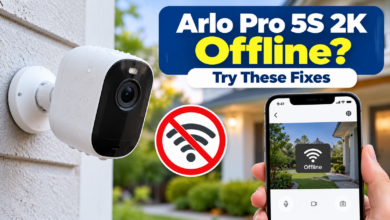

Arlo camera not working can become a big problem when you depend on it to protect your home. It may suddenly go offline, stop recording, fail to detect movement, or refuse to show live video. All these unexpected issues can make you feel worried because your security camera is no longer working as expected. If you are also dealing with an Arlo camera offline issue, you are not alone…
The good news for you is that most Arlo camera problems can be fixed easily without any technical expertise. The blog will help you understand the common causes, Arlo camera troubleshooting methods, and preventive tips that you can follow in a simple way.
Let’s start with some basics to fix your Arlo camera not working issue…
Unexpected reasons behind Arlo camera not working
After knowing what can happen when an Arlo camera not working issue, you may want to start troubleshooting immediately. To do that, you first need to know what is actually causing the problem. There can be one reason behind the issue, but sometimes several things can happen together.
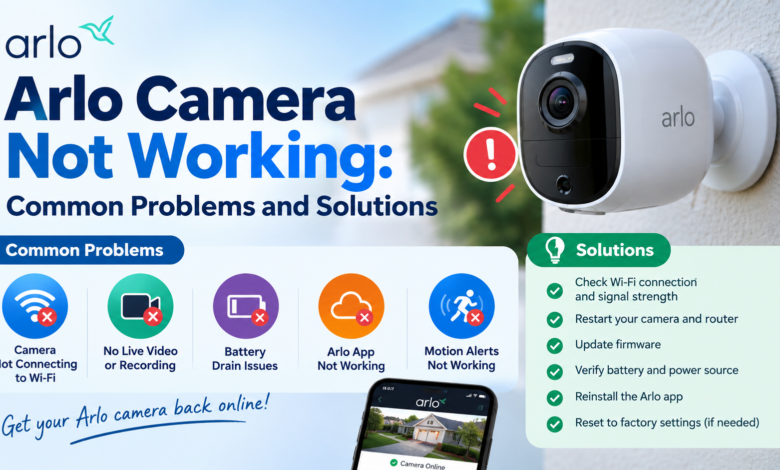
There can also be a mix of many reasons, such as:
- The camera battery is running low.
- The camera has lost its internet connection.
- The Wi-Fi signal is weak.
- The camera is too far from the router or SmartHub.
- The Arlo app needs an update.
- Motion detection is disabled.
- Phone notification permissions are turned off.
- The camera firmware is outdated.
- A temporary app or router glitch is affecting the connection.
Each reason has a specific fix, and all the important fixes are covered below.
Howto fix Arlo camera not working problem?
Now, after knowing what may have gone wrong, let’s move to the main topic. Here, you will learn how to do Arlo camera troubleshooting step by step. You can try the following quick fixes to bring your camera back to normal.
Step 1: Check the Arlo camera battery
A low or completely drained battery can make your Arlo camera not working issue appear suddenly. If the camera does not have enough power, it may disconnect, stop recording, or become unavailable in the app.
Follow these simple steps to check the battery:
- Open the Arlo app on your phone.
- Check the battery level of the affected camera.
- Charge the camera if the battery is low.
- Make sure the charging cable is properly connected.
- Wait until the camera has enough charge before testing it again.
If your camera uses a wired power connection, check that the power cable and outlet are working properly.
Step 2: Check if the Arlo camera is offline
If your camera appears as Arlo camera offline in the app, it may have lost its connection with your network or Arlo system. A temporary network problem can sometimes disconnect the camera.
You can check the connection by following these steps:
- Open the Arlo app.
- Find the affected camera.
- Check whether it shows an offline status.
- Check whether your phone has an active internet connection.
- Restart the camera if necessary.
- Check the router or SmartHub connection.
If other devices connected to the same network are also having problems, the issue may be related to your internet connection.
Step 3: Check the Wi-Fi connection
A weak or unstable Wi-Fi connection can cause several Arlo problems. Your camera may connect for a short time and then disconnect again if the wireless signal is not strong enough.
Perform the following steps to check your Wi-Fi:
- Test the internet connection on your phone.
- Restart the router.
- Keep the camera closer to the router during testing.
- Remove objects that may block the wireless signal.
- Check whether other devices are connected normally.
- Open the Arlo app again after the connection becomes stable.
Keeping the camera within a reliable wireless range can help prevent repeated connection problems.
Step 4: Fix Arlo camera not recording problem
An Arlo camera not recording issue can happen when recording or motion detection settings are not configured as expected. It can also occur when the camera is offline.
Try these steps to check the recording problem:
- Open the Arlo app.
- Select the affected camera.
- Check whether motion detection is enabled.
- Review the current camera mode.
- Check the recording settings.
- Confirm that the camera is online.
- Test the camera by creating a movement event.
If the camera detects movement but does not save a recording, review the applicable recording and storage settings in the Arlo app.
Step 5: Fix Arlo camera not detecting motion
If your Arlo camera not detecting motion, the problem may be related to motion detection settings, sensitivity, activity zones, or camera positioning.
You can try the following steps:
- Open the camera settings in the Arlo app.
- Make sure motion detection is enabled.
- Check the motion sensitivity level.
- Review your activity zones.
- Make sure the area you want to monitor is inside the detection area.
- Test the camera by walking across its field of view.
You should also check the camera position. If something is blocking its view, it may not detect movement properly.
Step 6: Fix Arlo camera not sending notifications
An Arlo camera not sending notifications problem can be frustrating because you may miss an important motion alert. The camera may still detect activity, but your phone may not display the notification.
Here are some simple things you can check:
- Open your phone’s notification settings.
- Make sure notifications are enabled for the Arlo app.
- Open the Arlo app and check its notification settings.
- Confirm that the correct camera is selected.
- Check the active camera mode.
- Turn off any phone setting that blocks Arlo notifications.
- Test the camera again after making the changes.
If notifications stopped after a phone or app update, checking the notification permissions again can help.
Step 7: Fix Arlo camera not showing live video
If your Arlo camera not showing live video, the camera may have a connection problem or the app may have experienced a temporary glitch.
Follow these steps to get the live video working again:
- Check your phone’s internet connection.
- Close the Arlo app completely.
- Open the app again.
- Check whether the camera is online.
- Restart the camera.
- Restart your router if the connection is unstable.
- Try viewing the live feed again.
If the live video works when the camera is closer to the router, the original location may have a weak wireless signal.
Step 8: Update the Arlo app
An outdated application can sometimes create unexpected problems between your phone and camera. If you are facing an Arlo camera not working issue, check whether a newer version of the Arlo app is available.
heck for an update:
- Open the app store on your phone.
- Search for the Arlo app.
- Check whether an update is available.
- Install the latest available version.
- Open the app and check your camera again.
You should also check for available firmware updates for your supported Arlo device.
Step 9: Restart the router and camera
Sometimes a simple restart can fix a temporary connection or software problem. Your router, camera, or app may experience a temporary glitch that prevents everything from communicating properly.
Things you can do to restart the connection:
- Turn off the Arlo camera if your model allows it.
- Unplug the router from the power outlet.
- Wait for about 30 seconds.
- Plug the router back in.
- Wait for the internet connection to become stable.
- Restart the camera.
- Open the Arlo app and check its status.
If the camera comes back online after restarting, the issue may have been temporary.
How can you prevent Arlo camera not working problems in the future?
To avoid another Arlo camera not working problem in the future, you have to follow some simple maintenance tips.
- Keep the camera battery adequately charged.
- Maintain a reliable internet connection.
- Keep the camera within a good wireless range.
- Keep the Arlo app updated.
- Check motion detection settings regularly.
- Make sure phone notifications are enabled.
- Keep the camera lens and view clear.
- Check the camera status if you notice missing recordings.
- Restart your router when you experience temporary connection problems.
Final Words
Resolving an Arlo camera not working issue becomes easier when you know which feature is causing the problem. Whether you are dealing with an Arlo camera offline, Arlo camera not recording, Arlo camera not detecting motion, Arlo camera not sending notifications, or Arlo camera not showing live video issue, the right troubleshooting steps can help you identify the cause.
Start with the basic checks, including power, internet connection, app settings, notifications, and camera placement.
FAQs
Q1: Why is my Arlo camera not working suddenly?
Ans: Your Arlo camera not working issue may be caused by a low battery, weak connection, outdated app, incorrect settings, or a temporary software problem.
Q2: Why does my Arlo camera keep going offline?
Ans: An Arlo camera offline problem can happen because of an unstable internet connection, weak Wi-Fi signal, low battery, or communication issue with the camera.
Q3: Why is my Arlo camera not recording?
Ans: If your Arlo camera not recording, check the camera’s online status, motion detection, recording settings, and applicable storage or subscription features.
Q4: Why is my Arlo camera not detecting motion?
Ans: Check motion detection, sensitivity, activity zones, and camera positioning if your Arlo camera not detecting motion.
Q5: Why is my Arlo camera not sending notifications?
Ans: If your Arlo camera not sending notifications, check the Arlo app’s notification settings and your phone’s notification permissions before testing the camera again.
Read More: www.dolphintechknology.com