
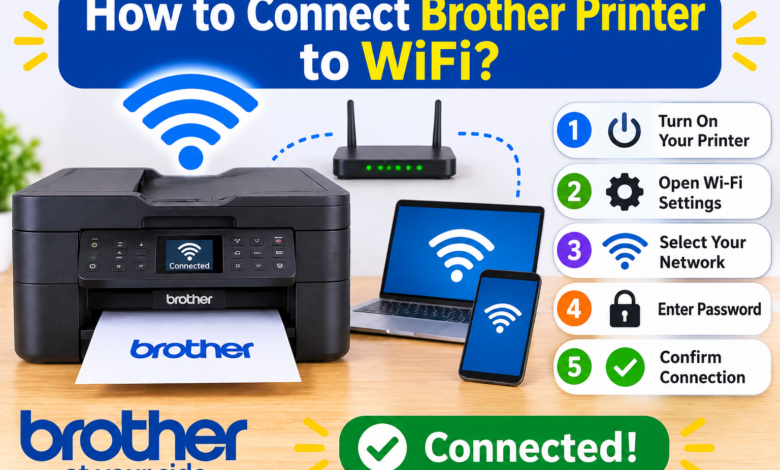
Imagine needing to print an important document, but your Brother printer is sitting across the room. Connecting it with a USB cable every time can be inconvenient. A wireless connection makes printing easier by allowing compatible computers, laptops, and smartphones to communicate with the printer through your Wi-Fi network. In this guide, How to Connect Brother Printer to WiFi, you’ll learn how to set up a wireless connection step by step.
The initial setup can be confusing if you are unfamiliar with wireless printer settings. You may wonder where to enter your Wi-Fi password, how to find your printer on the network, or whether you need a USB cable. Follow these simple instructions to connect your Brother printer to Wi-Fi and enjoy convenient wireless printing.
The good news is that most wireless Brother printers offer simple setup options. This guide explains how to connect Brother printer to WiFi using the control panel, WPS, and Brother’s installation software, along with practical instructions for Windows, Mac, and mobile devices.
What Do You Need Before Starting Wireless Setup?
Before connecting Brother printer to WiFi, prepare the following:
- Wi-Fi network name (SSID): The name of your wireless network.
- Network password: The password used by your router.
- Brother printer model: Check the printer label or display.
- Connected devices: Keep your computer or smartphone connected to the intended Wi-Fi network.
Also, check your printer’s wireless specifications. Not every Brother model supports the same Wi-Fi bands or security standards.
Methods to Connect Brother Printer to WiFi
Method 1: Connect Brother Printer to WiFi Using the Control Panel
This method works with many Brother printers that have a display and a wireless network menu.
- Turn on your Brother printer.
- Press Menu or Settings on its control panel.
- Select Network > WLAN > Setup Wizard.
- Enable WLAN if the printer asks.
- Wait for available wireless networks to appear.
- Select your Wi-Fi network name.
- Enter your wireless password carefully.
- Confirm the settings and allow the printer to connect.
When the connection succeeds, the display may show Connected, or the wireless indicator may become active. If your printer has a different menu layout, consult its model-specific manual.
Method 2: Use WPS to Connect Brother Printer to WiFi
If your Brother printer and router both support Wi-Fi Protected Setup (WPS), you can connect them without manually entering the network password.
- Place the printer near your wireless router.
- Open the printer’s Network or WLAN settings.
- Select WPS or WPS/AOSS, if available.
- Press the WPS button on your router when prompted.
- Wait while the printer establishes the wireless connection.
A successful connection should appear on the printer’s display. Do not select WPS if your router or printer does not support this feature.
Method 3: Set Up Your Brother Printer on Windows and Mac
After connecting the printer to Wi-Fi, install it on your computer so applications can send print jobs.
For Windows 11 and Windows 10:
- Visit Brother’s official website and search for your printer model.
- Open its Downloads section and select your Windows version.
- Download the recommended printer software.
- Run the installer and choose Wireless Network Connection.
- Follow the instructions to detect and install your printer.
- Print a test page to verify the connection.
For Mac:
- Download the compatible Brother software for your printer and macOS version.
- Run the installer and follow its instructions.
- Open the Apple menu > System Settings > Printers & Scanners.
- Select Add Printer, Scanner, or Fax.
- Choose your Brother printer and complete the setup.
Method 4: Connect Your Brother Printer Using a Smartphone
You can configure compatible Brother printers using the Brother Mobile Connect app.
- Install Brother Mobile Connect from your phone’s app store.
- Connect your smartphone to the intended Wi-Fi network.
- Open the app and follow its printer setup instructions.
- Select your Brother printer when it appears.
- Complete the wireless configuration by following the prompts.
The available features depend on your printer model and mobile operating system.
Brother Printer Not Connecting to WiFi? Try These Fixes
If wireless setup fails, check these common causes before repeating the installation.
- Incorrect Wi-Fi password: Re-enter the password and check uppercase and lowercase characters.
- Weak wireless signal: Move the printer closer to the router during setup.
- Incompatible network settings: Check the Wi-Fi band and security standards supported by your printer.
- Different networks: Make sure your computer and printer use the intended network.
- Changed router settings: Run the wireless setup wizard again if you recently changed your network name or password.
Restarting the printer and router can also clear temporary connection problems.
Final Thoughts
A wireless connection makes your Brother printer more convenient to use across compatible computers and mobile devices. You can configure it through the control panel, use WPS when available, or follow Brother’s installation software.
Choose the method supported by your printer, enter the correct network details, and verify the connection with a test print. For the most accurate instructions, always check the wireless setup manual for your exact Brother model.
Frequently Asked Questions
Q1: Can I connect Brother printer to WiFi without a USB cable?
Ans: Yes, compatible models can connect through the wireless setup wizard or WPS without requiring a USB connection.
Q2: Where can I find my Brother printer’s Wi-Fi password?
Ans: The printer normally uses your router’s wireless password. Check the router label or your network settings if you cannot remember it.
Q3: Can multiple computers use one Brother wireless printer?
Ans: Yes, multiple compatible devices on the same network can print through the Brother printer after the necessary software or printer settings are installed.
Q4: Why is my Brother printer not showing up on Wi-Fi?
Ans: The printer may not have completed wireless setup, or your devices may be connected to different networks. Check the printer’s wireless status and run the setup wizard again.
Read More: www.dolphintechknology.com