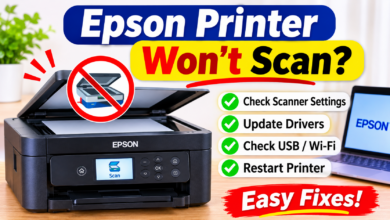

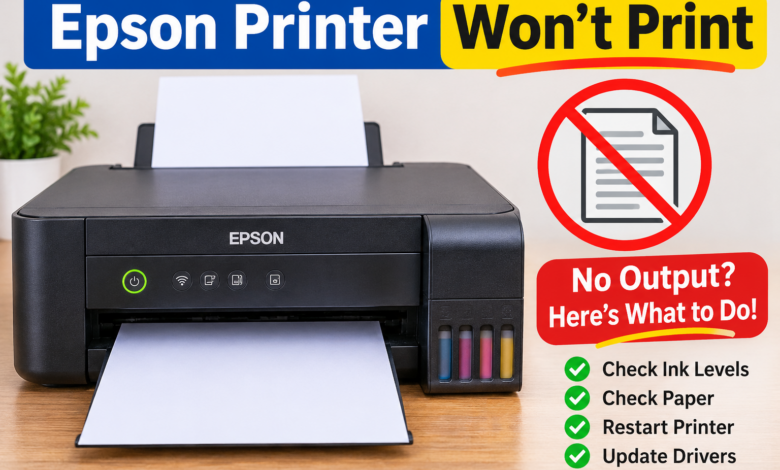
You click Print, but your Epson printer won’t print. Your document stays in the queue, your computer cannot find the printer, or the machine feeds paper without printing anything. It can be frustrating when you need an important document urgently.
If your Epson printer won’t print, the reason can be a connection problem, incorrect printer settings, an outdated driver, or clogged printhead nozzles. The right solution depends on what happens when you send a print command.
This guide explains nine of the best ways to resolve Epson printing problems on Windows 10, Windows 11, and Mac.
Why Is My Epson Printer Won’t Print to PC?
Common causes include:
- Connection problems: The printer cannot communicate with your computer through USB or Wi-Fi.
- Stuck print jobs: An incomplete document blocks new printing requests.
- Incorrect printer selection: Your computer sends documents to another device.
- Driver errors: Outdated or incompatible software interrupts printing.
- Ink or printhead problems: Low ink or clogged nozzles affect printed pages.
How to Fix an Epson Printer Won’t Print Issue?
Fix 1: Check the Printer’s Status
Start by examining the printer itself.
- Make sure it is switched on and ready.
- Check the display for error messages.
- Look for paper jams, empty trays, or open covers.
- Confirm that cartridges or ink tanks are installed correctly.
- Resolve any displayed error before sending another print job.
Fix 2: Check the USB or Wi-Fi Connection
- For USB printing, reconnect the cable at both ends and try another computer port.
- For wireless printing, confirm that the printer and computer are connected to the intended Wi-Fi network.
If you recently changed your router or password, reconnect the printer using its wireless setup menu.
Fix 3: Select the Correct Epson Printer
Your computer may be sending documents to an incorrect printer entry.
- On Windows, open Settings > Bluetooth & devices > Printers & scanners (Windows 11) or Settings > Devices > Printers & scanners (Windows 10).
- Select your Epson printer and check its status.
- On Mac, open System Settings > Printers & Scanners and select the correct device.
Fix 4: Clear Stuck Print Jobs
A stalled document can prevent other files from printing.
- Open your Epson printer’s print queue.
- Cancel documents that are stuck.
- Wait for the queue to clear.
- Restart the printer.
- Send a new test document.
If jobs remain stuck on Windows, restart the Print Spooler service through the Services application.
Fix 5: Resolve Epson Printer Won’t Print to PC
If your Epson printer not printing to PC is the main issue, check whether Windows recognises the device.
- Open Printers & scanners in Settings.
- Check whether your Epson model appears.
- If missing, select Add device.
- Try another USB port or verify the Wi-Fi connection.
- Run the Epson Printer Connection Checker if available for your model.
If Windows detects the printer but cannot print, check the driver and queue.
Fix 6: Run a Printer Nozzle Check
If the printer feeds paper but produces blank pages, missing lines, or faded colours, the printhead may need attention.
- Open the Epson maintenance utility and run a Nozzle Check.
- Examine the printed pattern.
- Missing lines or gaps can indicate clogged nozzles.
Fix 7: Clean the Printhead
If the nozzle-check pattern shows gaps, run Head Cleaning through the printer’s maintenance menu or Epson software.
- After cleaning, print another nozzle-check pattern.
- Avoid running repeated cleaning cycles unnecessarily because they consume ink.
- Follow your model’s maintenance instructions.
Fix 8: Update the Epson Printer Driver
An outdated or damaged driver can prevent your computer from communicating with the printer.
- Visit Epson’s official website.
- Search for your exact printer model.
- Download the recommended software for your operating system.
- Install it, restart your computer, and try printing again.
Fix 9: Reinstall the Epson Printer
If the previous fixes fail, remove the printer from your computer and add it again.
- On Windows, open Printers & Scanners, select your Epson device, and choose Remove device.
- On Mac, use System Settings > Printers & Scanners to remove it.
Restart your computer, reconnect the printer, and complete the installation using the correct model-specific software.
Final Thoughts
An Epson printer not printing to pc does not necessarily have damaged hardware. A connection issue, blocked queue, incorrect setting, or clogged printhead may be responsible.
Start with the basic checks, then investigate the driver and print quality. Follow the steps in order and test printing after each major change to identify the actual problem.
Frequently Asked Questions
Q1: Why does my Epson printer show printing but does not produce anything?
Ans: The print job can be stuck, the connection can be interrupted, or the printer can have an unresolved error. You need to check the queue and status.
Q2: Why is my Epson printer printing blank pages?
Ans: This is because of low ink, wrong installed cartridges, or clogged nozzle can cause blank output. Check the ink levels and run a nozzle check.
Q3: Why won’t my Epson printer print from my laptop?
Ans: Your laptop may have selected the wrong printer, lost its network connection, or installed an incompatible driver. Check the device selection and connection.
Q4: Why won’t my Epson printer print from my laptop?
Ans: Your laptop may have selected the wrong printer, lost its network connection, or installed an incompatible driver. Check the device selection and connection.
Q5: Should I reset my Epson printer?
Ans: A factory reset is not usually necessary. Check the connection, print queue, ink, and driver before resetting printer settings.
Read More: www.dolphintechknology.com