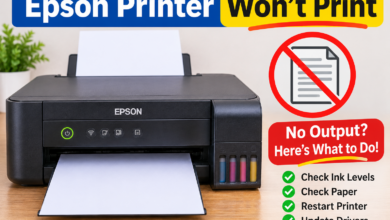

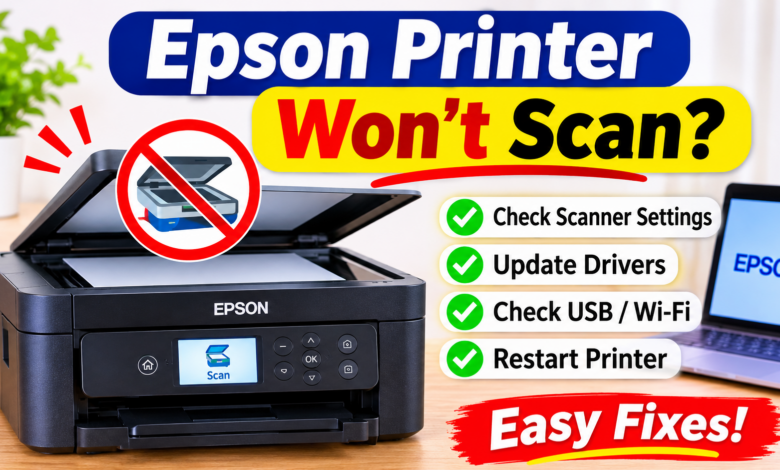
You want to scan an important document. You placed it on your Epson printer and pressed Scan, but nothing happened. Epson Scan 2 is unable to find your device, the scanning app freezes, and your Epson printer won’t scan but printing.
It is very frustrating, especially when everything was working perfectly before. But an Epson Printer Won’t Scan does not mean its scanner is damaged. The reason can be an incorrect software setting, an interrupted network connection, or an outdated scanner driver.
In this guide, you’ll learn how to fix Epson printer not scanning issue using nine practical solutions for Windows and Mac.
Why Is My Epson Printer Won’t Scan?
Before changing settings, identify what might be causing the problem:
- Connection errors: The computer cannot connect to the scanner through a USB cable or Wi-Fi.
- Software problems: Epson Scan 2 or Epson ScanSmart is wrongly configured.
- Detection issues: Your operating system cannot identify the scanner.
- Network restrictions: Firewall settings or different network connections interrupt scanning.
- Outdated software: The installed scanner package is incompatible or damaged.
How to Fix Epson Printer Not Scanning
Fix 1: Check the Scanner Glass and Document
Start with the physical scanner before changing software settings.
- Make sure the printer is switched on and ready.
- Place your document face down on the scanner glass, following the alignment markings.
- Close the scanner lid properly.
- Check for warning lights, error messages, or paper obstructions.
- Try scanning a single page to see whether the scanner responds.
Fix 2: Check Your USB or WiFi Connection
A printer can print successfully while its scanning connection is unavailable.
- For USB connections, reconnect the cable at both ends and try another computer port. Avoid USB hubs during testing.
- For wireless scanning, make sure the computer and Epson printer are connected to the same intended network. If you recently changed your router or Wi-Fi password, reconnect the printer.
Fix 3: Select the Correct Scanner in Epson Scan 2
Epson Scan 2 may open successfully but display the wrong device or fail to detect your printer.
- Open Epson Scan 2 on your computer.
- Check the scanner name in the device selection area.
- Select your exact Epson model if multiple devices appear.
- Try scanning a small document.
If your model uses Epson ScanSmart instead, open that application and check its selected device.
Fix 4: Reset Epson Scan 2 Utility
Incorrect scanner settings can prevent the application from communicating with your printer.
- Search for Epson Scan 2 Utility on Windows.
- Open it and select your Epson scanner.
- Click Other.
- Select Reset, if available.
- Restart Epson Scan 2 and test scanning.
On Mac, open Applications > Epson Software > Epson Scan 2 Utility and check the selected scanner.
Fix 5: Add Your Network Scanner Again
If Epson Scan 2 cannot detect your wireless printer, its saved network address may be outdated.
- Open Epson Scan 2 Utility.
- Select Settings from the scanner list.
- Choose Add.
- Search for your scanner or enter its current IP address.
- Select the detected device and save the settings.
Your printer must be switched on and connected to the network before completing this process.
Fix 6: Check Windows Scanner Detection
If your Epson printer is not scanning on Windows 10 or Windows 11, check whether Windows recognises the scanner.
- Open Device Manager.
- Look for your Epson device under the available imaging or scanner categories.
- Check for warning symbols or missing devices.
- If the scanner is not recognised, verify the connection and reinstall the correct Epson scanning software.
Fix 7: Check Epson Event Manager
If pressing the printer’s physical Scan button does nothing, Epson Event Manager may not be configured correctly.
- Search for Epson Event Manager on your computer.
- Open the application and check the assigned scanning action.
- Confirm that the correct Epson scanner and destination application are selected.
- Check whether firewall or security software is blocking the application.
This step is particularly relevant when scanning from the printer’s control panel rather than starting a scan from your computer.
Fix 8: Reduce the Scan Resolution
Large documents scanned at very high resolution can cause network communication errors.
- Open Epson Scan 2 and lower the resolution for a test.
- Try scanning a small document first.
- If it works, increase the resolution gradually.
This is particularly useful when scanning over Wi-Fi.
Fix 9: Update or Reinstall Epson Scanning Software
If your Epson Printer Won’t Scan, the installed software may be outdated or damaged.
- Identify your exact Epson printer model.
- Visit Epson’s official website.
- Find the scanning software compatible with your operating system.
- Install the appropriate Epson Scan 2 or scanning package.
- Restart your computer and test scanning again.
Avoid installing multiple versions of the same scanning application.
Final Thoughts
When your Epson Printer Won’t Scan, the cause may be a software configuration or communication problem rather than damaged hardware. Start by checking the scanner, connection, and Epson Scan 2 settings. Then investigate network detection, Event Manager, and driver installation.
Follow the fixes in order and test scanning after each major change. Always check your exact Epson model’s instructions before changing advanced settings.
Frequently Asked Questions
Q1: Why does my Epson printer print but not scan?
Ans: Printing and scanning use different software functions. Your printer may have a working print connection while Epson Scan 2 cannot detect the scanner. Check the scanning application and device settings.
Q2: Why is my Epson scanner not detected over Wi-Fi?
Ans: Your computer and printer may be on different networks, or the scanner’s IP address may have changed. Check Epson Scan 2 Utility and add the scanner again if necessary.
Q3: Why does my Epson printer’s Scan button not work?
Ans: Epson Event Manager may not be configured correctly, or the application may be blocked by security software. Check its assigned scanning action and device selection.
Q4: Should I reinstall Epson Scan 2?
Ans: Only after checking the connection, scanner selection, and utility settings. Reinstalling the correct software can resolve damaged or incompatible installations.
Read More: www.dolphintechknology.com