
Don’t you want Hulu keep buffering? Are you fed up with the unwanted interruptions to your streaming experience? If yes, we have got you covered. Now, you need not be frustrated and spoil your enjoyment while watching your favorite shows and movies.
All you need to know is that buffering occurs when the app pauses playback to load more content for a short period. Wanna know why Hulu keeps buffering? Eager to say goodbye to Hulu buffering?
If yes, here are the proven solutions that you need to fix all such issues just in minutes. Now, you will surely be able to stream more smoothly. If you are really tired of Hulu buffering, we will provide you with the quickest hacks to stop it forever.
So, the clock has started ticking the moment. It’s required to go ahead to explore this ultimate guide & fix Hulu buffering on any device within a given timeframe. Let’s get started!!
Causes Hulu Keep Buffering Issue
Are you not aware of the key factors responsible for Hulu keep buffering? If yes, here is a complete list of the detailed causes of the issue you are encountering. Let’s have a glance at it……
1. Slow Internet Connection
It is true that buffering often occurs if your internet speed is too slow and not stable.
- Excessive bandwidth prohibitions from your internet service provider (ISP).
- Network congestion during peak usage hours.
- Poor Wi-Fi signal strength or interruption.
2. Insufficient Device Performance
If you have devices that are older or underperforming, they may struggle to manage the requirements of the app’s data. As an outcome, it will lead to buffering issues with Hulu.
- Low memory of your device(RAM).
- If the CPU is overloaded due to multiple background apps running.
- An obsolete operating system or Hulu app version.
3. Outdated Hulu App or Software
Due to an outdated or malfunctioning version of the Hulu app, there may be several bugs or compatibility issues. It causes streaming interruptions.
- Incompatibility with the latest operating system of your device.
4. Overloaded Hulu Servers
Sometimes, Hulu’s servers experience a high volume of traffic. Such buffering can occur as the service starts to struggle to meet demand.
- It may occur due to server outages or maintenance activities on Hulu’s end.
5. Corrupted Cache and Cookies
Overloaded or corrupted cache files can cause buffering. Here are a few of the reasons for this issue –
- Out-of-date cached files
- Scarcity of storage space
6. Poor Wi-Fi Signal or Router Issues
The configuration of your router or physical placement can be responsible for the negative impacts on the Wi-Fi signal strength. It leads to unwanted buffering. The causes are as follows….
- The router is not placed near the streaming device.
- Unwanted interference from other electronic devices or walls.
- Obsolete firmware of your router or hardware.
7. Network Congestion or Bandwidth Sharing
If multiple devices are connected to the same network, it can reduce the available bandwidth for Hulu streaming.
- Streaming on a multitude of devices simultaneously.
- Background downloads
8. VPN or Proxy Interference
Due to using a VPN or proxy server, the ability of Hulu may be affected. This way, you will not be able to establish a stable connection.
- Poor internet speed
- Rerouting traffic
- Geo-barricades
- Several compatibility errors with Hulu’s servers.
9. ISP Throttling
Sometimes, ISPs (Internet Service Providers) restrain streaming services. It reduces speeds for platforms such as – Hulu.
- Internet Service Providers intentionally restrict bandwidth for video streaming.
- Immense data cap on your internet plan.
10. Streaming in High Quality on Limited Bandwidth
It is a harsh truth that streaming in high-definition (HD) or ultra-high-definition (4K) needs significantly more bandwidth.
- Availability of limited bandwidth
- Unwanted network restrictions.
11. Temporary Glitches in the Hulu App
Due to the minor glitches or bugs in the Hulu app, there may be interruptions in streaming. Later on, you have to suffer from Hulu keep buffering.
- Instability in the app’s behavior due to its prolonged usage.
- Unwanted conflicts with other apps or software on your device.
12. Unsupported Device Compatibility
If you have an older device, it may not support the latest features of Hulu or streaming requirements as well.
- If your device is not able to meet the minimum system requirements of Hulu.
- There may be an absence of the latest updates for older smart TVs, streaming sticks, or gaming consoles.
13. DNS or IP Configuration Issues
Inappropriate DNS settings can create disruption in the communication between Hulu and its servers. It occurs due to IP conflicts as well.
- The network settings can be misconfigured
- Changes in the dynamic IP address may disrupt the session.
14. Hulu Account or Subscription Issues
Are there issues with your Hulu account or subscription? It can surely lead to limited streaming functionality.
- Subscription can be expired
- Payment failures.
- Geo-restrictions while traveling to unsupported countries.
15. Environmental Interference
Due to physical or environmental factors, the strength and stability of your internet connection can be affected.
- Thick walls or floors obstruct Wi-Fi signals.
- Electromagnetic interruption from other devices.
How to Fix Hulu Keep Buffering Issues
Are you not aware of how to fix Hulu keep buffering problems? Can’t you tolerate Hulu keeps freezing more? Just calm down!! Here are a few troubleshooting steps that will help you to resolve Hulu buffering issues –
1. Check Your Internet Connection
You need to make the proper utilization of the online tools such as – Speed Test, it will allow you to make sure that you meet the recommended speeds of Hulu.
— Steps to Fix:
-
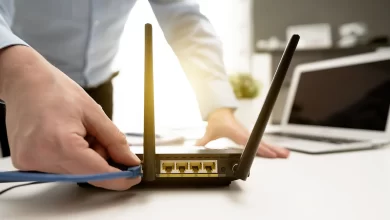
- Initially, restart your router so that you can improve connectivity.
- In the next step, you need to use Wi-Fi so that you can connect via Ethernet for a more stable connection.
- Next, disconnect unnecessary devices from the network.
2. Update the Hulu App
With the usage of an outdated Hulu app, you may suffer from performance issues. It includes -buffering. Let’s keep an eye on the steps to fix this issue easily –
— Steps to Fix:
-
- In the first step, go to the app store of your device. The app store can be – Google Play Store, Apple App Store, etc.
- Now, search for Hulu and check for the latest updates.
- After that, download and install the latest version of the app.
3. Clear Cache and Cookies
Excessively or corrupted cache data can slow down the Hulu app. Later on, it may lead to buffering.
— Steps to Fix:
-
- On Mobile Devices:
- Go to Settings > Apps > Hulu.
- Now, hit Storage > Clear Cache.
- On Web Browsers:
- Firstly, open your browser settings.
- Next, go to the Privacy and Security section.
- Thereafter, click Clear Browsing Data and select Cookies and Cached Files.
- On Smart TVs:
- In the case of Smart TVs, you have to locate the app settings or system storage settings.
- Now, clear app data for Hulu.
- On Mobile Devices:
4. Reduce Streaming Quality
If you are streaming in high-definition, it requires more bandwidth. This can cause buffering, only if your connection is limited.
— Steps to Fix:
-
- In the first step, open Hulu.
- Next, go to Settings.
- In the next step, navigate to Video Quality.
- Later on, lower the streaming quality to Standard or Low.
5. Restart Your Device
By restarting your device, you can fix temporary glitches on your device. This way, you may protect your Hulu device from performing incorrectly –
— Steps to Fix:
-
- At the beginning of the process, turn off your device completely.
- Next, wait for 30 seconds before turning it back on.
- Thereafter, relaunch Hulu and cross-check if the buffering issue persists.
6. Move Your Router or Streaming Device
If a weak Wi-Fi signal disrupts the streaming, it is better to follow the steps given below –
— Steps to Fix:
-
- Initially, place your router closer to your streaming device.
- Now, avoid placing your router near thick walls, electronic devices, or microwaves. It is necessary for you to do this because it can cause interference.
- Last but not least, you need to consider using a Wi-Fi extender. This will be helpful to you for enjoying better signal coverage.
7. Check for Hulu Server Outages
In some cases, Hulu buffering issues are caused by server outages on Hulu’s end. To verify it, the steps are –
— Steps to Fix:
-
- To kick-start the verification procedure, visit websites like Downdetector. This way, you can check Hulu’s server status.
- If there is any kind of outage, you need to wait for Hulu to troubleshoot the issue.
8. Disable VPN or Proxy Servers
If VPNs and proxies are interrupting the streaming performance of Hulu, you have to disable them.
— Steps to Fix:
-
- In the very first step, turn off your VPN or proxy server.
- Now, reconnect to Hulu without any intermediaries.
- If you need a VPN, you can select one optimized for streaming, such as ExpressVPN.
9. Update Your Device’s Software
If you don’t want to encounter compatibility issues with the Hulu app, you need to upgrade the device software. Don’t dare to let the device’s software be outdated.
— Steps to Fix:
-
- Initially, go to your device’s settings.
- In the next step, check for system updates.
- After that, download and install any pending updates.
- Last, restart your device and try Hulu again.
10. Reinstall the Hulu App
If the above-given troubleshooting steps don’t work, you can reinstall Hulu. It can help you fix corrupted files.
— Steps to Fix:
-
- First of all, uninstall the Hulu app from your device.
- In the second step, you need to restart your device. This way, you will achieve success in clearing any residual data.
- Later on, reinstall Hulu from the official app store.
11. Contact Your Internet Service Provider (ISP)
If your Wi-Fi connection is consistently slow, your ISP may restrict streaming services. It may also happen that you have to experience several network issues.
— Steps to Fix:
-
- In the first step, you have to call your ISP. This way, you can inquire about any kind of unnecessary prohibitions.
- Now, ask for a plan upgrade. You have to do it only if your current bandwidth is not sufficient for streaming.
12. Use an Alternative Device
It may be possible that the issue is specific to the device that you are currently using. In this scenario, you can use an alternative device.
— Steps to Fix:
-
- Firstly, you need to stream Hulu on a different device. The devices can be – mobile, smart TV, or gaming console.
- If the issue is resolved on the alternative device, you can proceed to troubleshoot the original one for issues.
13. Factory Reset Your Router
In case the router’s settings are misconfigured, go ahead to restore optimal performance. The steps for resetting your router to its default settings…
— Steps to Fix:
-
- At the beginning of the resetting procedure, press and hold the reset button.
- Hold this button for 10-30 seconds.
- Now, reconfigure the network after the reset.
- Finally, you need to connect your device and test Hulu.
14. Ensure Your Hulu Subscription is Active
Suppose, if your subscription is inactive or expired, Hulu may not stream properly.
— Steps to Fix:
-
- First of all, log in to your Hulu account.
- Now, check the status of your subscription.
- After that, renew your plan if necessary.
15. Contact Hulu Support
In case, none of the above-given solutions work, Hulu’s customer support team can assist you. Let’s see how you can seek assistance from them –
— Steps to Fix:
-
- First of all, visit the Hulu Help Center.
- After that, try to get in touch with their support team.
- Thereafter, provide them with details about the buffering issue. It includes – device type, app version, and internet speed.
Wrapping-up,
In a nutshell, after taking a deep dive into this blog, you can definitely be familiar with the reliable troubleshooting methods to fix Hulu keep buffering issues.
For more information visit on our website : Dolphin Techknology now!