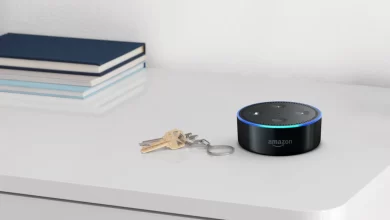

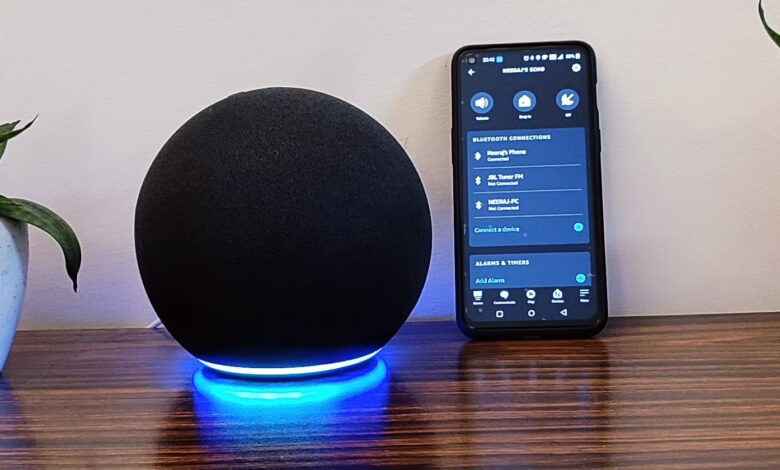
Amazon Alexa is prominent as an essential part of several households. It provides you with hands-free assistance with everything from playing music to controlling all smart home devices. Undoubtedly, Alexa is not perfect.
This is why you have to come across several common and frustrating issues. One of the most maddening issues that you have to encounter is Alexa connectivity problems.
Are you looking to understand the meaning of the connectivity issues with Alexa? Or do you need simple and effective solutions to nip them in the bud? If yes, you are in the right place.
In this post, you will surely get the solutions to all of the issues you are encountering. Let’s go ahead.
Common Causes of Alexa Connectivity Problems
Before having an eye on the key solutions to curb the Alexa connectivity problems, you have to understand what may cause this issue –
- Weak Wi-Fi signal
- Router settings or firmware issues
- Interference from other electronic devices
- Outdated Alexa software
- Device placement
- Network congestion or bandwidth limitations
Reliable Tips To Fix Alexa Connectivity Problems
Have you identified the root of the issue? You need to fix it. This way, it will become much easier for you. Let’s go through the reliable troubleshooting tips that have been mentioned below –
1. Check Your Internet Connection
Most of the Alexa connectivity issues are related to Wi-Fi issues. The first thing that you need to do in this situation is – check your internet connection.
— Steps to Fix:
- Initially, you need to use another device (like a smartphone or laptop) so that you can check if your Wi-Fi is working.
- Now, restart your router so that you can unplug it. Then, you need to wait 30 seconds and plug it back in.
- In case your internet is down, you have to contact your internet service provider.
- Last, you are required to confirm a stable internet connection, as it is the foundation for resolving most Alexa issues.
2. Restart Your Alexa Device
In some cases, the easiest and simplest solution works best. Just with a quick restart, you can easily resolve temporary connectivity issues.
— Steps to Restart Alexa:
- In the first step, you need to unplug the power cable from your Alexa device.
- In the next step, you have to wait for about 30 seconds.
- After that, it is essential for you to plug back in and allow it to be reconnected automatically.
3. Move Alexa Closer to Your Router
If your Alexa device is too far from your Wi-Fi router, it can surely have trouble maintaining a stable connection. You have to encounter this issue if the router is placed behind thick walls or metal objects.
— What to Do:
- First of all, you need to move your Alexa device closer to your Wi-Fi router.
- Try to avoid placing it near microwaves, cordless phones, or baby monitors. These can interfere with the signal.
- In the next step, you need to confirm that this is at least 1 foot away from the router to avoid signal overlap.
- Later on, improve the signal strength. It will resolve Alexa connectivity issues more quickly.
4. Check Your Wi-Fi Password
If your Alexa is not able to connect after a reset or power outage, it may be due to an incorrect Wi-Fi password.
— Steps to Verify:
- Initially, you need to open the Alexa app on your smartphone.
- Now, go to Devices > Echo & Alexa > [Your Device] > Wi-Fi Network.
- Then, re-enter your network credentials carefully.
- In the last step, enter the wrong password that is common. But, it will be easy for you to fix issues such as – Alexa connectivity problems.
5. Update the Alexa App and Device Firmware
With the use of outdated software, you have to confront several performance issues and connectivity issues.
— How to Update:
- To kick-start the upgrading procedure, you need to open the App Store or Google Play Store.
- Then, you have to search for the Alexa app and upgrade it.
- In this step, you will know that Alexa devices usually upgrade automatically. But you can upgrade it by saying – “Alexa, check for software updates.”
6. Restart or Reset Your Router
If multiple devices are facing connectivity issues, your router may be at fault.
— Steps to Restart:
- At the beginning of the process, you need to unplug your router and modem.
- Now, wait for 1–2 minutes.
- Then, plug them back in. It will be helpful for you to start with the modem and then later on with the router.
7. Reconnect Alexa to Wi-Fi Using the Alexa App
If your Alexa device is not automatically reconnecting, you can manually set it up again. For this, the steps that you have to follow are –
— Steps:
- First of all, you need to open the Alexa app.
- Then, tap on Devices at the bottom.
- After that, you have to choose your Alexa device.
- Thereafter, it requires you to change next to the Wi-Fi network. After doing so, you can follow the on-screen instructions.
8. Factory Reset Your Alexa Device (As a Last Resort)
If none of the troubleshooting tips given above help you to resolve the issue, you can perform a factory reset. It may be your best option.
— Steps:
- For Echo (3rd/4th Gen): You need to press and hold the Action button for 20 seconds.
- For Echo Dot: In this case, you have to press the Mic Off. Then, Volume Down button. Hold both of these buttons for 20 seconds.
This way, the ring light turns orange, you can set up your device again in the Alexa app. Utilize this step only if other troubleshooting efforts fail to resolve the Alexa connectivity problems.
Conclusion
In short, the steps that we have outlined in this post will help you resolve Amazon Alexa connectivity problems. This way, you can restore your Alexa’s performance. It can help you keep your device connected for a long time and functioning smoothly. Finally, you can get back to enjoying hands-free convenience without any interruptions.
For more information visit on our website : Dolphin Techknology now!