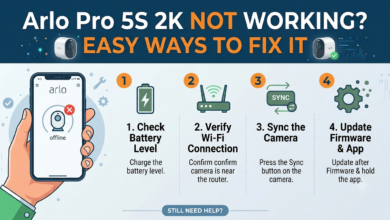

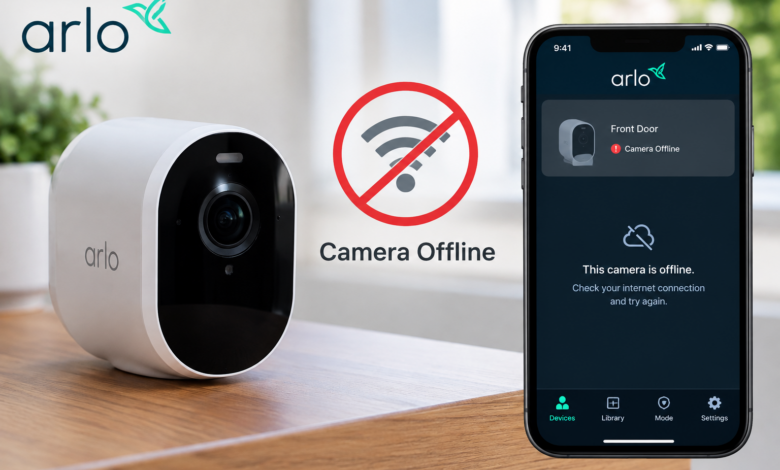
If your Arlo camera suddenly shows an offline status, it can feel frustrating, especially when you rely on it for security. The good news for you is that you can solve most of the Arlo problems without any technical support.
This blog will help you walk through simple and practical solutions that actually work in real life.
Let’s break down the fix for you in simple and clear words so you can get your camera back online.
Let’s start with the basics first..
Why does your Arlo camera go offline?
Before fixing anything, knowing why your Arlo camera goes offline will help you to know why this issue happens. Most of the time, the Arlo camera offline issue is related to some internet connectivity, power supply, or syncing problems.
Sometimes your camera may go offline because your WiFi signal is weak, and sometimes it could be due to some drained batteries or a base station that is not connected properly.
These small issues are common and happen more often than people think. Knowing the root cause will save your time because you won’t try random fixes that don’t work.
Steps to fix your Arlo camera offline issue
Step 1: Check your WiFi connection first
Your internet connection is the backbone of your Arlo system. If your WiFi is unstable, then your Arlo camera will keep disconnecting.
You can start fixing your WiFi connection by following the steps below:
- First, check your router.
- Secondly, you have to make sure it is connected to the internet.
- Lastly, restart it by unplugging it for 30 seconds.
Step 2: Keep your camera within a reasonable range
If your camera is too far away, the signal can get weak and cause the Arlo camera offline issue.
You have to make sure:
- Your Arlo camera is far from walls, furniture, and other devices that can interfere with the signal.
- To use a strong and stable WiFi connection
Step 3: Make sure the Arlo base station is online
If you are using an Arlo base station or SmartHub, it must be working properly for your cameras to stay connected.
You can check the LED lights on the base station to verify the connection:
- Solid green means everything is working fine
- No light or red light means there is a problem
If needed, you can restart the base station by unplugging it and plugging it back in after a minute. This simple step can fix many connectivity issues. You should ensure that the Ethernet cable is properly connected to your router.
Step 4: Check the Arlo camera battery and power supply
This might sound basic to you, but it is one of the most common reasons behind the issue.
If your Arlo camera runs on batteries, then you have to:
- First, remove the old batteries.
- Then, wait for a few seconds.
- Lastly, insert them again properly.
If batteries are low, you have to replace them immediately, as weak batteries can cause the camera to go offline frequently.
If you have wired Arlo cameras, then you have to:
- First, make sure the cable is not loose.
- Finally, check the power adapter.
Step 5: Resync your Arlo camera
Sometimes the Arlo camera loses connection with the base station or network. In this case, syncing it again can fix the issue.
To resync your Arlo camera, you have to follow the steps below:
- Firstly, press the sync button on the base station.
- Secondly, press the sync button on the camera.
- Now, you have to wait for the LED to blink blue.
- Lastly, if the sync is successful, then your Arlo camera should come back online.
This step is especially useful after changing your WiFi network or router.
Step 6: Restart your Arlo camera
Restarting devices is a classic but important fix because it can clear temporary bugs.
You can restart your Arlo camera by following the steps below:
- First, remove the battery and inserting it again.
- Secondly, unplug and replug the device.
- After restarting, wait for a minute and check the status in the app.
Step 7: Look at the LED light indicators
Arlo cameras use LED lights to show their status. Understanding these lights can help you identify the problem quickly.
- Blinking blue light: Camera is syncing
- Solid blue light: Connected but may need setup
- Blinking amber light: Low battery
- No light: Power issue
These signals act like a quick diagnostic tool. Paying attention to them can save a lot of guesswork.
Step 8: Move the camera closer to the router
Distance plays a big role in connection stability. Even if your camera worked fine before, a slight change in placement can cause issues.
You can try moving the camera closer to:
- The router
- The base station
If the camera works fine after moving it, then the problem is clearly signal-related. In that case, you might consider using a WiFi extender.
Step 9: Perform a factory reset as a last option
If nothing works, then resetting the device can solve deep issues.
To factory reset, you have to follow:
- First, press and hold the reset button.
- Secondly, wait until the LED changes color.
- Then, set up the camera again in the Arlo app.
Final Thoughts
Fixing an Arlo camera offline issue is usually not complicated at all. In most of the cases, it is due to internet problems, battery issues, or syncing errors. By following the above steps, you can quickly identify the problem and fix it without any stress.
FAQs
Q1: Why does my Arlo camera keep going offline?
Ans: Your Arlo camera keeps going offline because of some weak WiFi signals, low or drained battery issues, or syncing issues with the Arlo base station.
Q2: How can I reconnect my Arlo camera to WiFi?
Ans: You can reconnect your Arlo camera to WiFi by resyncing the camera through the sync button or through the Arlo app.
Q3: Can a weak internet connection cause an Arlo camera offline issue?
Ans: A weak or unstable internet connection can cause an Arlo camera offline issue.
Q4: How often should I replace my Arlo camera batteries?
Ans: You should replace your Arlo camera batteries every month whenever you notice performance issues.
Q5: Does resetting fix Arlo camera offline issues?
Ans: Yes, resetting can fix Arlo camera offline issues, but it should be your last option because it can clear all settings, your saved data, and saved settings.
Read More: www.dolphintechknology.com