
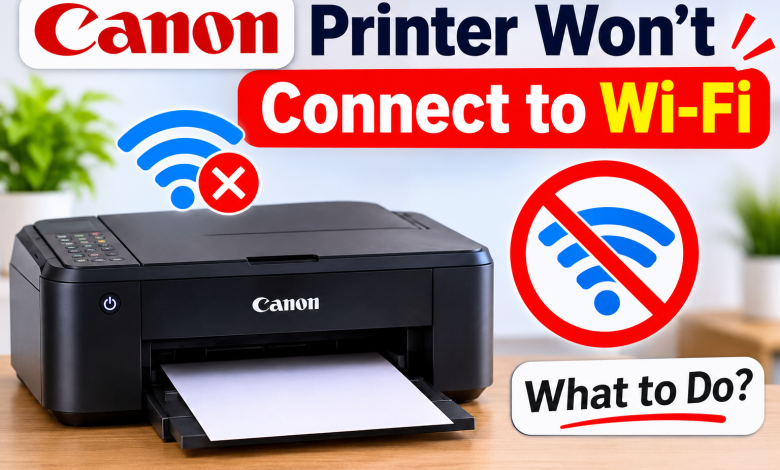
Is your Canon Printer Won’t Connect to Wi-Fi just when you need to print something important? This problem can occur when setting up a new printer, changing your router, or reconnecting a device that previously worked without issues. An incorrect Wi-Fi password, weak wireless signal, or incompatible network setting may be responsible.
If your Canon printer won’t connect to Wi-Fi, you don’t necessarily need to reset the printer or reinstall its software immediately. A few simple checks can often identify the cause. This guide explains nine practical fixes, including how to check your network settings, reconnect your printer, and resolve problems when your computer cannot detect it.
Why Canon Printer Won’t Connect to Wi-Fi?
A Canon printer may fail to join a wireless network because of an incorrect password, an unsupported Wi-Fi frequency band, router restrictions, or an incomplete setup. Sometimes, the printer connects to Wi-Fi but remains unavailable on your computer.
First, determine whether the printer cannot join the network or whether the computer simply cannot find it. This distinction makes it easier to choose the right fix and avoid unnecessary changes.
Best Solutions to Bring Your Canon Printer Won’t Connect to Wi-Fi
Step 1: Restart Your Canon Printer and Router
Temporary network errors can interrupt wireless setup.
- Turn off your Canon printer.
- Unplug your router for about 30 seconds.
- Reconnect the router and wait until Wi-Fi is available.
- Turn on the printer and try connecting again.
- Wait for the printer to finish starting before opening its wireless settings.
Step 2: Check Your Wi-Fi Name and Password
A typing mistake or outdated password can prevent the printer from joining your network.
- Open the printer’s wireless or network settings.
- Select your current Wi-Fi network name (SSID).
- Enter the password carefully, checking uppercase letters and special characters.
- Confirm the settings and wait for the connection result.
If you recently changed your router or password, update the printer’s saved network details. Do not confuse your Wi-Fi password with the router administrator password.
Step 3: Check Your Router’s Wi-Fi Band
Some Canon printers work only with 2.4 GHz Wi-Fi, while other models support additional bands. Connecting to an unsupported band can prevent wireless setup.
- Check your exact printer model’s wireless specifications.
- Review the frequency bands enabled on your router.
- If necessary, connect to a compatible network band.
- Run the wireless setup again.
Do not assume all Canon printers have identical network requirements. Confirm the specifications before changing router settings.
Step 4: Move the Printer Closer to the Router
A weak signal can interrupt setup or cause repeated disconnections.
- Move the printer closer to the router temporarily.
- Keep it away from thick walls and sources of wireless interference.
- Check the printer’s Wi-Fi indicator or network status.
- Try connecting again.
If the connection works near the router but fails in its usual location, signal strength or interference may be the issue.
Step 5: Use the Correct Canon Wireless Setup Method
Canon printers may offer wireless setup through a screen, a setup application, or WPS on compatible devices.
For printers with a display:
- Open the network or Wi-Fi settings.
- Select the wireless setup option.
- Choose your network and enter its password.
- Wait for confirmation that the connection is established.
For printers without a display:
- Follow the setup instructions for your model.
- Some models use a Wi-Fi button sequence and require software installation to finish the connection.
For WPS:
- Use this method only if your printer and router both support it.
- Follow their instructions and complete the process within the specified time.
For model-specific instructions, visit Canon’s official website and select your region and printer model.
Step 6: Check Whether the Printer Is Connected but Undetected
Your Canon printer may connect to Wi-Fi successfully while your computer cannot find it.
- Check the printer’s network status or print a network configuration page, if available.
- Connect your computer to the same local network.
- Avoid guest networks that isolate connected devices.
- Open your computer’s printer settings and check whether the Canon printer appears.
If the printer works from another computer or phone, focus on the device that cannot print rather than resetting the printer immediately.
Step 7: Review Your Router Settings
Certain network restrictions can block a printer even when the Wi-Fi password is correct.
- Check whether MAC address filtering or access controls are blocking the printer.
- Confirm that guest network isolation is disabled for devices that need to communicate.
- Compare the router’s security settings with your printer’s wireless requirements.
- Restart the router after making necessary changes.
Avoid disabling network security entirely. If you are unsure which setting is responsible, restore the previous configuration before trying another change.
Step 8: Reinstall the Canon Printer on Your Computer
If the printer connects to Wi-Fi but remains unavailable, its installed configuration or driver may be outdated.
- Identify your exact Canon model and computer operating system.
- Download the appropriate setup software from Canon’s official website.
- Remove the old printer entry if necessary.
- Run the setup process and add the printer using its wireless connection.
On Windows, open Settings > Printers & scanners. On a Mac, open System Settings > Printers & Scanners. Menu labels may vary by operating system version.
Step 9: Reset the Printer’s Network Settings
If the previous fixes fail, the printer may contain outdated or incorrect network settings.
- Open the printer’s network settings.
- Locate the network reset option, if available.
- Reset the wireless settings according to your model’s instructions.
- Connect the printer to your current Wi-Fi network again.
A network reset can erase saved wireless details. Keep your network name and password available before proceeding. Avoid a full factory reset unless Canon’s instructions recommend it.
Final Thoughts
When your Canon printer won’t connect to Wi-Fi, start with the password, network band, and wireless signal. If the printer connects but your computer cannot detect it, check the local network and reinstall the printer configuration. Follow the instructions for your specific Canon model before changing advanced network settings.
Frequently Asked Questions
Q1: Why is my Canon printer not connecting to Wi-Fi after changing routers?
Ans: The printer may still store your old network name or password. Open its wireless settings and connect it to the new network using the correct credentials.
Q2: Why is my Canon printer not connecting to the internet?
Ans: A printer generally needs a local network connection for wireless printing, not necessarily internet access. If local printing works but online features fail, check the router’s internet connection separately.
Q3: Why isn’t my Canon printer connecting to Wi-Fi even with the correct password?
Ans: Check the supported Wi-Fi band, signal strength, router restrictions, and wireless security settings. Then repeat the setup using the instructions for your exact model.
Read More: www.dolphintechknology.com