
Change Netflix password helps protect your account if you share access, notice unusual activity, or reuse the same password elsewhere. You can easily update it through a browser on a computer or phone. The change applies to your account, so you do not need a password for each device. Follow these simple steps.
Why Should You Change Netflix Password?
A strong, unique password helps prevent other people from accessing your Netflix account. Consider changing it if you receive an unexpected sign-in alert, someone you do not recognise is using your account, or you have shared your password with someone who no longer needs access. You should also update it if you used the same password on a website that experienced a data breach.
How to Change Netflix Password on the Computer?
If you know your current password and you can easily sign in, follow these steps:
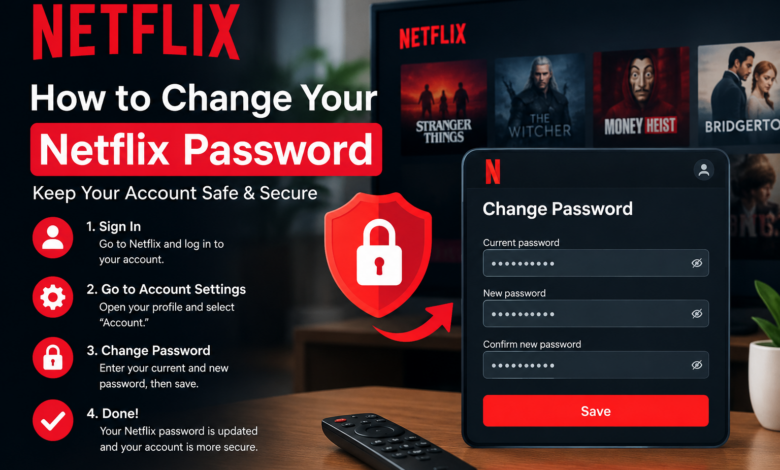
- Open a browser and visit Netflix’s official website.
- Sign in to the account you want to update.
- Open the Account section from your profile menu.
- Select the option to change your password. You can also start from Netflix’s official password help page.
- Enter your current password, then type your new password.
- Re-enter the new password if prompted to confirm it.
- Keep the option to sign out of all devices selected if you want to end existing sessions.
- Select Save to apply the change.
How to Change Netflix Password on Phone?
You can change your password on an Android phone, iPhone, or tablet. The exact app layout can vary, so using a mobile browser is a reliable option for you.
- Open your phone’s browser and go to Netflix’s official website.
- Sign in to your account if necessary.
- Open the profile menu and choose Account.
- Find and select Change Password.
- Enter your current password and create a new one.
- Confirm the new password, if requested.
- Choose whether to sign out of all devices, then save the change.
If the app displays an Account option, it may open the account page in your browser. Follow the same steps there.
If you have forgotten your password, visit netflix.com/loginhelp and choose an available recovery method. Netflix can send reset instructions to the email address on the account or a verification code to its linked phone number.
How to Change Netflix Passwords on TV?
Most smart TVs and streaming devices do not provide the same account-management options as a web browser. In most cases, you should change the password using a phone or computer, then sign in again on your TV.
- On a phone or computer, open Netflix’s official website and sign in.
- Go to Account and select Change Password.
- Enter the current password and your new password.
- Save the change. If security is a concern, select the option to sign out of all devices.
- Open Netflix on your TV. If it asks you to sign in, enter your account email or phone number and the new password, or follow the on-screen sign-in instructions.
The TV interface differs by brand and streaming device, so the labels may not match exactly. If Netflix remains signed in, you may not need to do anything immediately. However, if you choose to sign out of all devices, you will need to sign in again. A TV may also offer you a QR code and sign-in link that lets you complete the process using your phone.
How to Reset a Forgotten Netflix Password?
If you cannot sign in because you forgot the password, use Netflix’s recovery page:
- Visit netflix.com/loginhelp.
- Choose email or text message, depending on the options available.
- Enter the email address or phone number linked to your account.
- Follow the instructions sent by Netflix. Check spam or junk folders if an email does not appear.
- Open the reset link or enter the verification code before it expires.
- Create and confirm a new password, then save it.
Simple Tips for Creating a Strong Password
A secure password should be unique to Netflix and hard for others to predict. Netflix’s guidance recommends a password of at least eight characters, using a mix of uppercase and lowercase letters, numbers, and symbols. Avoid common choices such as “12345678,” your name, birthdays, or other personal details.
If you suspect someone has accessed your account, review the devices with recent viewing activity and sign out unfamiliar devices. Also secure the email account connected to Netflix, because access to that inbox could allow someone to reset your password.
How and When to Troubleshoot Password Changes?
If your new password does not work, check for typing mistakes and remember that passwords are case-sensitive. Make sure your device is not automatically entering an older saved password. Update the saved entry or remove it and try again.
If a reset link says it is invalid, request a fresh one from Netflix’s official recovery page and use the newest message. Avoid clicking links in unexpected messages; open Netflix directly in your browser instead. If you do not receive a reset email, check spam and confirm that you entered the correct address.
Conclusion
Learning how to change Netflix password takes only a few minutes when you can access your account. Use the Account page in a browser, or reset the password through Netflix’s official recovery page if you have forgotten it. The same account-level change applies when watching on a phone or TV. Choose a unique password, sign out of unfamiliar devices, and keep your recovery email secure to help protect your account.
Frequently Asked Questions
Q1: Does changing Netflix password sign everyone out?
Ans: Not automatically in every case. During the change or reset process, choose the sign-out-all-devices option if you want to end existing sessions. Some devices may take time to request sign-in again.
Q2: Can I change my password without knowing the old one?
Ans: Yes, go to netflix.com/loginhelp and follow the available email or text-message recovery steps. You must have access to an accepted recovery method or use another option offered by Netflix.
Q3: Do I need to change the password separately on my TV and phone?
Ans: No, the password belongs to the account, not an individual device. Change it once through account settings, then use the new password on devices that ask you to sign in again.
Read More: www.dolphintechknology.com