Arlo camera not connecting to WiFi? Complete guide to Fix Isssue

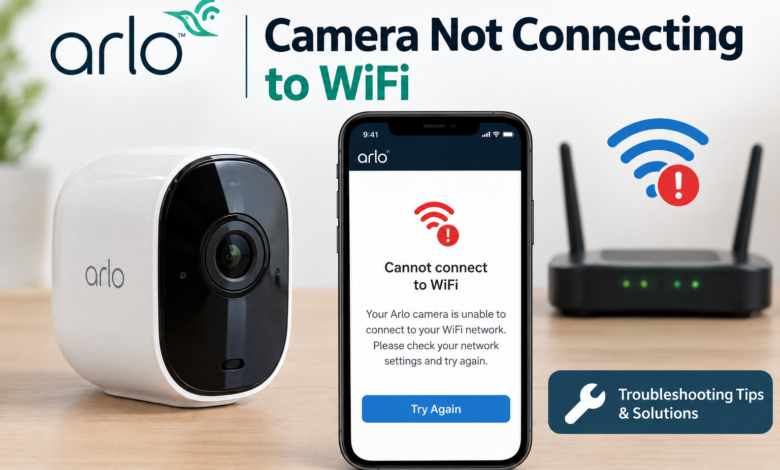
Arlo camera not connecting to WiFi can become a big problem that most of the Arlo camera users face. It may unexpectedly refuse to start, stop recording, and crash without a warning. All this can make you feel scared because it breaks your home security and your peace of mind. If you are also dealing with Arlo camera offline issue, you are not alone…
The good news for you is that most of the Arlo camera not connecting to WiFi can be fixed easily without any need for technical expertise. The blog will help you through all the possible causes, Arlo camera troubleshooting, and preventive tips that you can implement in a simple way.
Let’s start with some basics to fix Arlo camera won’t connect to WiFi issue…
What will happen if there is Arlo WiFi connection problem?
Before we start talking about Arlo camera troubleshooting, you should know what will happen if your Arlo camera won’t connect to WiFi. Mostly, the WiFi connection issue occurs due to some network band mismatch or router distance.
Here are the six things that can happen if Arlo camera stays disconnected:
- No live stream can be seen through the Arlo app.
- Will not receive any motion alerts or notifications.
- The video recordings will not be saved in the cloud.
- The battery will drain quickly.
- The camera LED light will continuously blink amber or will remain off.
- Some smart features like animal or package detection will stop working.
Common trouble-causing reasons behind Arlo camera not connecting to WiFi?
After knowing what will happen by Arlo camera offline issue, you may want to do Arlo camera troubleshooting. To do that, you first need to know who the real culprits are that are causing the problem. The most important thing you must know is that there can be one reason behind the issue.
There can also be a mix of many reasons, such as:
- Wrong WiFi details entered during setup.
- Using an incorrect network frequency band.
- The camera is placed far from the router.
- The device’s battery is running low.
- Internet services are down.
- Obstacles are blocking the WiFi waves.
- A temporary glitch in the router.
Each reason has a specific fix for it to work smoothly again; all the fixes are covered below.
How to fix Arlo camera not connecting to WiFi problem?
Now, after knowing what went wrong, let’s move to the main topic. Here, you will now learn how to do Arlo camera troubleshooting step by step. You will work on verified quick fixes below that will help you to solve the problem easily:
Step 1: Enter correct WiFi details
You may not know this, but if you type a single wrong letter, character, or number in the password or name, it can block the camera from connecting to WiFi. You should double-check the WiFi credentials before clicking Enter.
Simple steps you must follow to fix the WiFi details:
- Go to the Arlo app and start the setup again.
- Enter your WiFi details slowly and carefully.
- Double-check all the characters, numbers, and letters.
- Test the password on your phone first for confirmation.
- If confirmed, click on Enter to complete the connection.
Step 2: Verify the network frequency band
Most Arlo cameras do not work on the fast 5 GHz WiFi frequency that modern phones have. They only know the older 2.4 GHz frequency. You have to verify and use the old network so that your camera does not face any WiFi issues further.
Change to the correct network band by doing these simple steps:
- Go to your phone’s WiFi settings menu.
- Search for the network that ends with “2.4 G” or “Home”.
- Connect your phone to that 2.4 GHz network frequency band.
- Visit the Arlo app and start the Arlo camera setup process again.
Step 3: Place the Arlo camera and router in the closest range
WiFi network waves can get weaker if they have to travel distances in your home. If you put your Arlo camera too far during the setup, it will not be able to connect to WiFi. You need to bring it closer during the setup.
Perform the following important steps:
- Remove the camera from the wall mount.
- Bring the Arlo camera indoors and keep it next to the router.
- Run the Arlo setup again in the app while standing there.
- Place the camera back outside when it is connected to WiFi.
Step 4: Fully charge the Arlo camera
An Arlo camera running low on battery will not have enough energy to complete a strong setup. If your camera turns on, it may have shut down its WiFi chip to save battery. You have to fully charge the camera before connecting to WiFi.
Consider these tips to fully charge the Arlo camera:
- Remove the battery from the Arlo camera.
- Connect the camera to its official charging cable.
- Plug the adapter into a working wall outlet.
- Wait until the camera light changes colour to solid green.
Step 5: Fix the internet error
Sometimes both your camera and router are working fine, but the internet provider is experiencing a temporary error. If there is any problem with the internet, then the camera cannot connect to WiFi. You have to refresh the internet connection to get back online.
To fix the exact problem, follow these steps:
- Confirm whether other websites are working on your phone or not.
- Go to the main internet modem on the wall.
- Unplug the power cable from the back of the modem.
- Plug it back in after waiting for one minute.
- Wait for the light to turn green.
Step 6: Remove the obstacles
Thick walls, beams, electronics, or glass windows become shield that stops the WiFi waves from flowing. If you have placed the camera behind them, then the signal will drop, which causes Arlo WiFi connection problem.
- Move the Arlo camera away from the blocking.
- Clear all the appliances that come in the path between the router and camera.
- Place the router on a high shelf rather than putting it inside a cabinet.
- Use a WiFi extender near the camera for better signal strength.
Step 7: Restart the router
Sometimes the most unexpected solution, like restarting, can fix the big problem. Your router may have collected incorrect IPs and cache junk that is stopping it. The temporary glitch can cause Arlo camera offline. You need to restart it to clear all junk.
Things you definitely need to do to restart the router:
- Pull out the cables from the back of the router.
- Unplug the internet cable if separable.
- Wait for a few minutes.
- Plug both the cables and the router back in.
- Wait for the router lights to stabilize and turn solid.
How can you prevent Arlo camera not connecting to WiFi in the future?
To avoid Arlo camera not connecting to WiFi from happening in the future, you have to follow these tips:
- Enter all the WiFi details carefully during setup.
- Always work on the correct network frequency band.
- Place the camera close to the router for better signals.
- Always keep the device battery charged.
- Confirm whether the internet service is down instead of blaming the router.
- Remove all the obstacles that can block the WiFi waves.
- Restart the router occasionally when needed.
Final Words,
Resolving an Arlo camera not connecting to WiFi issue becomes simple when you know what to fix. By following this quick Arlo camera troubleshooting blog, you can stop the Arlo camera offline error and get your device back on track. Always remember that when Arlo camera won’t connect, the root cause may be an Arlo WiFi connection problem that this blog will help you to fix.
FAQs
Q1: Why is my Arlo camera failing to sync to WiFi during setup?
Ans: The Arlo camera not connecting to WiFi error because of an incorrect WiFi password, distance gaps, or a temporary router glitch.
Q2: What can cause a working Arlo camera to suddenly stop responding?
Ans: An Arlo camera offline status occurs when the battery is not fully charged to power the camera, or your home ISP has a temporary blackout.
Q3: Why does the app fail to find my device on a new router?
Ans: Your Arlo camera won’t connect if your phone is using a 5 GHz network frequency band instead of the 2.4 GHz band.
Q4: How can I resolve an amber light error on my camera?
Ans: Resolving this Arlo WiFi connection problem can be done by moving the camera close to the router and removing obstacles that can block the wireless path.
Q5: What should be the best first step to resolve device sync errors?
Ans: Start the Arlo camera troubleshooting by unplugging the home router for two minutes to clear the cache junk that is blocking smart devices from pairing.
Read More: www.dolphintechknology.com