Fixing Audio and Video Sync Problems on Hulu: A Complete Troubleshooting Guide

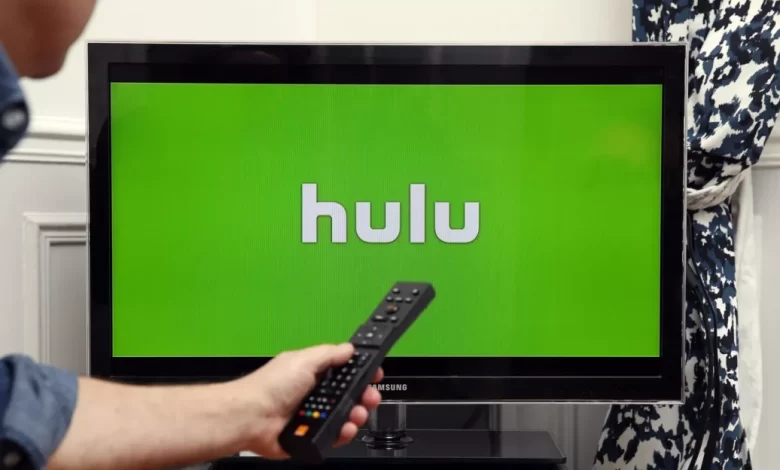
Streaming platforms such as – Hulu provide high-quality and seamless enjoyment to all individuals. But it is certain that nothing destroys the vibe faster than when audio & video fall out of sync. So, no matter if you are bringing your favorite series or watching a new release, audio and video problems on Hulu devices can be extremely frustrating.
Undoubtedly, these issues may cause the dialogue to lag behind the visuals or vice versa. It leads to a confusing as well as disappointing viewing experience. The good news is that fixing audio and video sync problems on Hulu is not as complicated as it might seem to you. Why are you feeling afraid of it? This guide will surely help you walk through practical and easy-to-follow solutions that may enable you to restore perfect harmony to your stream.
Let’s dive into the key details given below –
Common Causes of Audio and Video Sync Problems on Hulu
Are you going ahead to have an in-depth look at the reliable troubleshooting tips mentioned in this blog? If yes, before walking through these fixes, it’s a must for you to be aware of the reasons for Audio and Video Sync Problems on Hulu. Let’s scroll down….
- Poor or weak internet connection
- Bandwidth fluctuations
- An obsolete Hulu app
- Outdated system firmware
- Temporary glitches in the device
- App cache
- Audio settings misconfiguration on streaming devices
- Background apps
- Interruption with streaming due to unwanted downloads
Step-by-Step Guide to Fixing Audio and Video Sync Problems on Hulu
Now, you have been aware of the key factors responsible for Audio and Video Sync Problems on Hulu. So, it’s time to dig a little deeper into the effective fixes that will enable you to nip the issue in the bud. So, without wasting your time, let’s move forward and familiarize ourselves with the detailed troubleshooting tips to get a sigh of relief of the audio & video sync issues on Hulu devices.
Let’s go ahead…
1. Check Your Internet Connection
At the beginning of the troubleshooting procedure, you need to check if your internet connection is slow or unstable. Because, it can be one of the top reasons for audio and video sync problems on Hulu. Here are the steps that you need to follow for the same….
- Initially, restart your router and modem.
- Now, make sure that you’re not running multiple heavy downloads in the background.
- In the next step, you have to use a wired connection for better stability. You can do it easily if it is available.
- You need to keep this thing in mind that Hulu recommends at least 6 Mbps for streaming in HD.
2. Restart the Hulu App and Streaming Device
If you are encountering temporary bugs, you have to restart the Hulu app and streaming device. This way, you can prevent from syncing issues –
- Initially, close the Hulu app completely.
- Now, turn off your streaming device. It can be TV, console, PC, etc.
- In the next step, you need to wait for a minute and then you can easily restart & app.
Note: By following this simple step, you can often resolve short-term syncing glitches.
3. Clear Hulu App Cache
It is certain that cached data can cause you several syncing issues over time. But it entirely depends on your device. So, in such a situation you have to clear Hulu app cache. For this, the steps that you have to follow are –
- On Android:
If you are using an Android device, you need to go to Settings > Apps > Hulu > Storage > Clear Cache. - On Smart TVs or Firestick:
On the other hand, if you are utilizing Smart TVs or Firestick, you need to go to Settings > Applications > Hulu > Clear Cache and Data.
4. Update the Hulu App and Device Firmware
Due to utilizing outdated software, you may have to encounter various compatibility as well as playback issues. So, it is suggested to upgrade the Hulu app and device firmware. Let’s see what steps you have to follow for the same…..
- In the first step, you have to visit the app store or settings menu on your device.
- Next, you can check for available updates for both your Hulu and your system firmware.
- Later on, you can install the updates and reboot your device.
- Adjust Audio Settings
Are you using an external speaker or sound system? If yes, it will be better for you to make adjustments in the audio settings. To do it more successfully, you have to follow the steps given below –
- First of all, you have to go to your device’s Audio Output settings.
- Now, set it to Stereo or PCM. You have to do it instead of setting it to Dolby or Surround Sound formats.
- Later on, this will surely help you to resolve the out-of-sync issues that you are encountering with your external sound systems.
6. Try a Different Device or Browser
If it is a device-specific issue, to narrow down it, you have to try a different device or browser. Here are the steps that will enable you to do it successfully –
- In the first step, you need to log in to Hulu on another device. No matter if it is a phone, tablet, or browser, you can easily do it.
- In case, the sync issue disappears, it means that the issue likely lies with your original device.
- Suppose, if the sync issue disappears, the issue likely lies with your original device.
7. Contact Hulu Support (If Needed)
If the above given troubleshooting steps does not help you to resolve the issue, it means the problem may be on Hulu’s end. So, in this situation you can follow the steps given below –
- Initially, visit the Hulu Help Center
- Then, report the issue and share your device, OS, and app version details.
Conclusion: Get Back to Seamless Streaming
In short, by following the basic troubleshooting steps, you can surely get rid of the frustration due to – audio and video sync problems on Hulu. Once you start following the steps outlined above, you can resolve most syncing issues more quickly and efficiently.
For more information visit on our website : Dolphin Techknology