
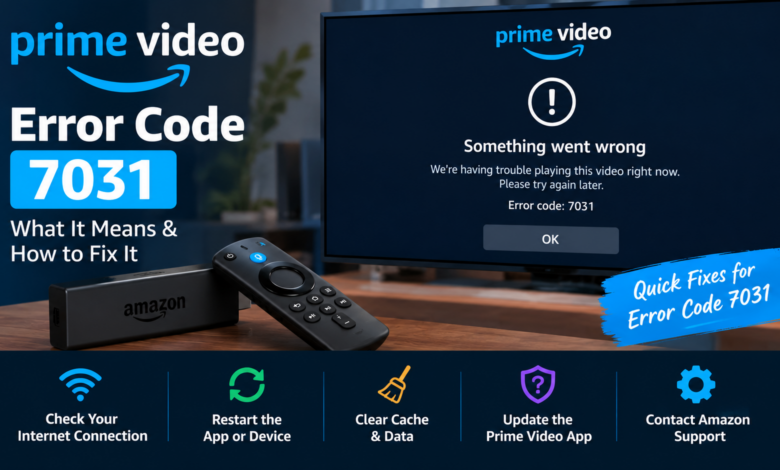
If you were all set to relax on weekends and wanted to watch the latest movie or show on Amazon Prime Video, and you suddenly see Amazon Prime Video error code 7031, it will kill your interest. Amazon Prime Video error code 7031 is quite common, but it usually shows up when there is a problem with your browser or stored data.
Here’s the good news for you: Amazon Prime error code 7031 is not a serious issue at all, and most of the time, you can fix it in just a few minutes without any technical skills.
In this blog, you will get to know what this error actually means, why it happens, and how to fix Amazon Prime Video error code 7031 step by step.
What is Amazon Prime Video error code 7031?
Amazon Prime Video error code 7031 usually appears when you are trying to stream content through a web browser. It also means that your browser is having trouble playing the video due to some stored data, settings, or compatibility issues. Instead of playing your movie or show, Prime Video stops and shows Amazon Prime error code 7031 on your screen.
You will mostly see Amazon Prime Video error code 7031 on:
- Google Chrome
- Mozilla Firefox
- Microsoft Edge
- Safari (sometimes)
Amazon Prime error code 7031 is more common on browsers than on mobile apps or smart TVs.
Why does Amazon Prime Video error code 7031 happen?
Understanding the real cause behind Amazon Prime Video error code 7031 will help you fix the issue faster.
Here are the most common reasons behind Amazon Prime Video error code 7031:
Reason 1: Corrupted cache and cookies
Browsers store temporary files to load your websites faster. If these files get corrupted, they can cause playback errors such as Amazon Prime Video error code 7031.
Reason 2: Outdated browser
If your browser is not updated, it may not support the latest streaming features of Prime Video.
Reason 3: Disabled hardware acceleration
Some browsers need hardware acceleration enabled to play videos smoothly.
Reason 4: Extensions interfering
Some adblockers or other extensions can sometimes block your Prime Video playback.
Reason 5: DRM or content protection issues
Amazon Prime Video uses DRM (Digital Rights Management), and if your browser fails to support it properly, then you will see Amazon Prime error code 7031.
Reason 6: Internet connection issues
A slow or unstable internet connection can easily interrupt your streaming and cause Amazon Prime error code 7031.
How can you fix Amazon Prime error code 7031?
Now, let’s get to the real part. Here are some easiest and most effective fixes you can try.
Fix 1: Refresh your page
Sometimes the issue is temporary, and you can easily fix it by refreshing your page.
To refresh your page, you have to:
- First, click the refresh button on your browser.
- Lastly, press F5 on your keyboard.
Fix 2: Clear your browser cache and cookies
This is one of the most effective solutions.
To clear your browser cache and cookies, you have to:
- First, open your browser settings.
- Secondly, go to Privacy or History.
- Next, select Clear browsing data.
- Now, choose cache and cookies.
- Lastly, click clear, restart your browser, and try again.
Fix 3: Update your browser
Using an outdated browser can easily cause compatibility issues for you.
To update your browser, you have to:
- First, open your browser settings.
- Secondly, go to the About section.
- Now, check whether there are any updates or not.
- Lastly, if there are any updates available, download and install the latest version.
Fix 4: Enable hardware acceleration
Some browsers need this setting turned on.
To enable hardware acceleration:
- First, go to your browser settings.
- Secondly, search for hardware acceleration
- Now, turn it on.
- Lastly, restart your browser.
Fix 5: Disable your browser extensions
Some of your browser extensions can block your streaming.
To disable your browser extensions, you have to:
- First, open your extensions page in your browser.
- Secondly, turn off all your extensions.
- Lastly, restart your browser, try streaming again, and if it works, try to enable extensions one by one to find the problem.
Fix 6: Try a different browser
If you still see Amazon Prime error code 7031, then you can switch to another browser.
For example:
- If you are using Chrome, you should try Firefox.
- If you are using Edge, then you should try Chrome.
Fix 7: Check and fix your internet connection
A stable connection is vital for Amazon Prime Video streaming.
To check and fix your internet connection, you have to:
- First, restart your router.
- Secondly, move closer to the WiFi.
- Now, avoid using VPN or proxy.
- Lastly, try a different network if possible.
Fix 8: Restart your device
Restarting your device may sound simple to you, but it works most of the time.
To restart your device, you have to:
- First, turn off your device.
- Secondly, wait for 1-2 minutes.
- Lastly, turn it back on.
Can Amazon Prime error code 7031 affect all your devices?
No, Amazon Prime error code 7031 does not usually affect all your devices because it is mostly a browser-related issue.
For example: Amazon Prime error code 7031 may appear on your laptop browser, but your Amazon Prime Video may work fine on your phone or TV.
Which means the issue is with your browser or device, but not with your Amazon Prime account.
How can you prevent Amazon Prime error code 7031 from happening again in the future?
Once you have fixed the Amazon Prime error code 7031, then you definitely want to avoid it from happening again in the future.
Here are some tips you can follow to prevent Amazon Prime error code 7031 from happening again in the future:
- Always keep your browser updated.
- Always clear your cache and cookies.
- Always avoid too many extensions.
- Always use a stable internet connection.
- Always restart your device occasionally.
These habits will help you avoid Amazon Prime error code 7031 in the future.
Is Amazon Prime error code 7031 a serious problem?
No, Amazon Prime error code 7031 is not a serious problem, even though it looks frustrating.
In most of the cases:
- It is related to a browser data issue.
- It is not an account problem.
- It is not a server issue.
- It can be fixed in minutes.
When should you contact Amazon customer support?
If you have tried all the above fixes and you are still facing Amazon Prime error code 7031, then now is the best time to contact Amazon customer support.
You should contact Amazon customer support when:
- Amazon Prime error code 7031 keeps coming back.
- Amazon Prime error code 7031 appears on multiple browsers.
- Amazon Prime error code 7031 stops videos from playing.
- Your Amazon account faces other issues.
Final thoughts
Seeing Amazon Prime error code 7031 can feel annoying, especially when you want to relax and watch something. But the good thing for you is that Amazon Prime error code 7031 is easy to fix. You just have to start with some simple steps, like refreshing the page and clearing the cache. If this doesn’t work for you, then you have to update your browser, disable the extension, or try a different browser.
In most cases, one of the fixes will help you solve the Amazon Prime error code 7031 quickly. You just have to follow the steps above, and you will be back to streaming your favourite shows or latest movies without any interruption.
Read More: https://dolphintechknology.com/