
If you are trying to relax with your favorite Netflix show and suddenly see Netflix error M7111-1331, it can instantly ruin the mood. This error usually appears when Netflix fails to load properly in your browser, especially on desktop or laptop devices.
The good news?
It is a common issue, and in most cases, it can be fixed easily without technical expertise. In this guide, we will break down what Netflix Error M7111-1331 means, why it happens, and the best ways to fix Netflix Error Code M7111-1331 step by step.
Everything is explained in simple words so anyone can follow along.
What is Netflix Error M7111-1331?
Netflix error M7111-1331 is a browser-related error that usually occurs when Netflix detects a problem with stored data, extensions, cookies, or outdated browser components. Instead of playing your movie or series, Netflix stops the session and shows this error code.
This error is most commonly seen on:
- Google chrome
- Microsoft edge
- Mozilla FireFox
- Safari (macOS)
It typically does not appear on mobile apps or smart TVs, which confirms that the issue is browser-specific.
Common Reasons Behind Netflix Error Code M7111-1331
Before jumping into solutions, knowing the common reasons behind the Netflix error can help you understand why this error occurs in the first place. Here are the most common causes:
– Corrupted browser cookies and cache
Netflix relies on cookies to remember login sessions and preferences. When these files become outdated or corrupted, Netflix error M7111-1331 may appear.
– Conflicting browser extensions
Ad blockers, VPN extensions, privacy tools, and script blockers often interfere with Netflix’s streaming scripts.
– Outdated browser version
Older browser versions may not support Netflix’s latest requirements, which leads to errors like M7111-1331.
– Netflix bookmark issues
If you are opening Netflix from an old bookmark, it might be directing you to a broken or outdated URL.
– VPN or Proxy usage
Netflix actively blocks VPNs and proxy connections. If one is detected, the platform may show Netflix error M7111-1331.
How can you fix Netflix error code M7111-1331?
Let’s walk you through some most effective methods that you can use to fix Netflix error code M7111-1331. You can follow these solutions step by step for the best results:
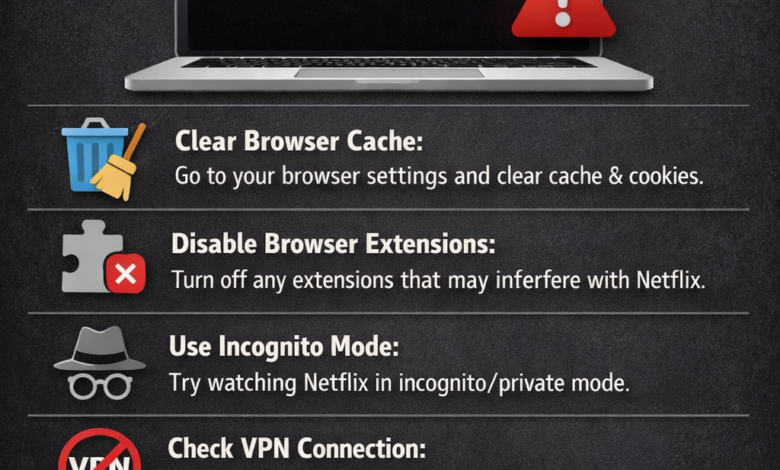
Fix 1: Clear browser cookies and cache
This is the most reliable solution, and it works every time in most of the cases. Here are some steps you have to follow to clear your browser cookies and cache in Chrome or any other browser:
- First, open your browser.
- Secondly, press Ctrl + Shift + Delete.
- Navigate to cookies and other sites’ data.
- Now, select cached images and files.
- Click on clear data.
- Restart your device.
- Lastly, visit Netflix.com and log in again.
Clearing cookies helps you remove the corrupted data that may trigger netflix error M7111-1331.
Fix 2: Disable browser extensions temporarily
Extensions are one of the biggest causes of Netflix streaming issues. You can easily disable your browser extensions temporarily by following the steps:
- First, open the browser settings.
- Navigate to extensions.
- Now, disable all the on-screen extensions.
- Give a quick restart to your browser.
- Lastly, open your Netflix and test its playback.
If Netflix works, re-enable your extensions one by one to identify who the real culprit is. Ad blockers and VPN extensions are usually the problem.
Fix 3: Open Netflix directly and avoid bookmarks
Your old bookmarks may redirect to outdated URLS. You can use these steps instead of clicking a saved bookmark:
- First, open a new tab.
- Next, type www.netflix.com manually.
- Lastly, sign in and start streaming.
This simple step often helps you to resolve the Netflix error M7111-1331 instantly.
Fix 4: Update your browser
If you are running an outdated browser, it can cause you compatibility issues. To update your Chrome browser, you can:
- First, click on the three-dot menu.
- Navigate to Help, then About Google Chrome.
- Now, install any available updates.
- Lastly, restart your browser.
Remember to do the same procedures for Edge, Firefox, or Safari. Keeping your browser updated is essential to fix Netflix error code M7111-1331.
Fix 5: Turn off VPN or proxy services
Netflix blocks many VPN and proxy services. If you are using a VPN, you can follow the steps below:
- First, turn it off.
- Refresh Netflix.
- Try streaming again.
If Netflix starts working, your VPN was the real cause behind the constant Netflix error code M7111-1331. Try to use Netflix without a VPN or switch to a trusted provider that supports streaming legally.
Fix 6: Try incognito or private mode
Private mode runs without stored cookies or extensions. You just have to follow these:
- For Chrome: Ctrl + Shift + N
- For Firefox/Edge: Ctrl +Shift + P
You can try to open Netflix in private mode and confirm if the error disappeared or not. If it works, the issue lies with your regular browsing data.
Fix 7: Reset your browser settings
If nothing else works, resetting your browser may help you by removing the following:
- Extensions
- Temporary settings
- Corrupted site data
It does not delete bookmarks or saved passwords, so you don’t have to worry at all.
Does Netflix error M7111-1331 affect your mobile devices?
In most of the cases, the answer is no as the error mainly appears on the desktop browsers. If Netflix works fine for your phone, tablet, or Smart TV, it will further confirm that the issue is browser-based. If you are facing a similar issue on mobile, reinstalling the app usually solves the problem.
How can you prevent your Netflix from error code M7111-1331 in the future?
We all know prevention is always better than fixing the issue again later. You can follow these best practices to keep your Netflix safe from errors:
- Keep your browser updated
- Try to avoid adding unnecessary extensions to your browser.
- Remember to clear cookies every few weeks.
- Try not to use outdated bookmarks.
- Try to avoid unreliable VPN services.
- Always access Netflix from its official website.
These habits significantly reduce the chances of encountering Netflix error M7111-1331 ever again.
Is Netflix error M7111-1331 really a server problem?
No, this error is not caused by Netflix servers. It is a client-side issue, meaning the problem exists on your device or browser. That is why Netflix usually continues to work on other devices while failing on one browser.
When should you contact Netflix support?
You should reach out to Netflix support if you are experiencing the following problems:
- The error continues even after trying all fixes.
- Your Netflix fails on multiple browsers and devices.
- You suspect an account-related issue.
Netflix support can easily verify whether your account or region settings are involved in the error or not.
Final thoughts
Netflix error M7111-1331 can be frustrating, but it is rarely serious. In most of the cases, clearing cookies, disabling extensions, or updating your browser is enough to fix the Netflix error code M7111-1331 completely.
The key takeaway is very simple: this error is browser-related, not account-related, and it is almost always fixable in minutes. With the steps above, you should be back to streaming your favourite movies and shows without interruptions. You just have to sit back, relax, and let Netflix do what it does best, which is entertaining you…
For more information visit on our website : Dolphin Techknology