How to Sync Govee Lights Together Easily with These Steps

A single Govee light can change the mood of a room, but several lights working together can make the whole setup feel much more immersive. Whether you have Govee lights around your TV, behind your desk, along the walls, or across a gaming setup, syncing them can make colours and effects flow across the entire space.
If you are wondering how to sync Govee lights together, the Govee Home app is the best place to start. Once your compatible lights are added to the app, you can use supported group-control features to manage multiple lights together instead of adjusting each one separately.
In this blog, you will learn what syncing means, what you need before starting, how to group your lights, how music effects work, and what to do when the lights refuse to sync.
What Does Syncing Govee Lights Mean?
Syncing Govee lights means setting up compatible lights so they can respond together to supported controls. Instead of opening each device separately, you can manage multiple lights as a group.
Depending on your Govee models and available features, synced lights may:
- Change colours together
- Adjust brightness together
- Follow the same lighting scene
- Respond to music
- Turn on or off together
- Create a more consistent room effect
The exact features available can differ between Govee products, so compatibility matters.
What Do You Need Before Syncing Govee Lights?
Before trying to sync your lights, make sure everything is ready. A little preparation can prevent most setup problems.
You will generally need:
- Two or more compatible Govee lights
- The Govee Home app
- A Govee account
- Bluetooth enabled on your phone
- A stable Wi-Fi connection for Wi-Fi-enabled models
- All lights connected to power
- The latest available version of the Govee Home app
Most importantly, add each light to Govee Home separately before attempting to create a group.
How to Add Govee Lights to the App
If your lights are not already visible in Govee Home, start here.
Step 1: Install Govee Home
Open the Google Play Store or Apple App Store and search for Govee Home.
Install the official app and sign in to your Govee account. Create an account if you do not already have one.
Step 2: Turn On Your Lights
Plug in each Govee light you want to sync. Make sure every light is powered on and ready for pairing.
Keep your phone close to the lights during the initial setup.
Step 3: Add the First Light
Open Govee Home and tap Add Device.
Select your Govee product from the list and follow the instructions shown by the app. Complete the connection and check that the light appears on your device dashboard.
Step 4: Add the Remaining Lights
Repeat the same process for every Govee light you want to use.
Before continuing, test each light individually. Make sure you can turn it on, change its brightness, and use any supported colour controls.
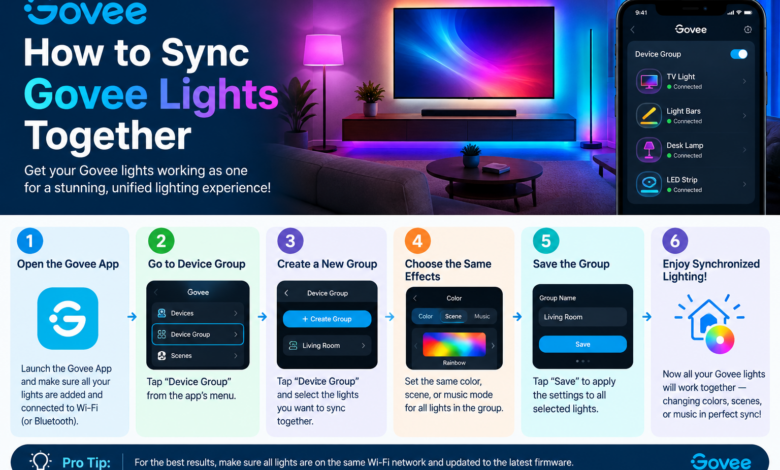
How to Sync Govee Lights Together
Once all your lights are visible in Govee Home, you can look for the grouping or synchronisation feature supported by your devices.
Step 1: Open Govee Home
Launch the Govee Home app and make sure you are signed in to the correct account.
Step 2: Find Your Devices
Open the section where your connected Govee products are listed.
Check that all the lights you want to synchronise are visible and online.
Step 3: Look for Group or Sync Options
Depending on your Govee model and app version, look for a Group, Group Control, or similar synchronisation option.
Select the available feature that lets compatible lights work together.
Step 4: Select Your Lights
Choose the Govee lights you want to control together.
For example, you could select:
- Desk light
- Wall light
- TV backlight
- Floor lamp
Only select compatible devices that can participate in the available group or synchronisation feature.
Step 5: Save the Group
Give your group a simple name, such as Gaming Setup, Living Room, or Bedroom Lights.
Save the group and open its controls.
Step 6: Test the Group
Change the colour or brightness from the group controls.
Watch the lights to make sure they respond together. If one light does not react, check that device separately before changing the entire setup.
How to Sync Govee Lights With Music
Music synchronisation is one of the most entertaining ways to use multiple Govee lights. Supported lights can react to sound and create changing colours or effects.
To try music effects:
- Open Govee Home.
- Select the compatible lights or group.
- Open the available Music or sound-reactive mode.
- Choose the lighting effect you want.
- Start playing music.
- Adjust the effect if your model provides additional controls.
This can work particularly well around gaming desks, televisions, speakers, and party areas. Keep in mind that music-sync features can vary between Govee products.
Why Should You Sync Govee Lights?
Syncing several lights is not just about making the room colourful. It can also make everyday control easier.
Better Atmosphere
When several lights display coordinated colours and effects, the room can feel more balanced and immersive.
Easier Control
You do not have to open every individual device. A compatible group can let you adjust several lights together.
Better Gaming Setup
Lights placed behind monitors, desks, shelves, and walls can create a more connected gaming environment.
More Fun for Parties
Music-responsive lighting can add movement and colour to a party without manually changing every light.
Cleaner Appearance
Coordinated lighting can make different Govee products look like part of one planned setup.
Tips for Managing Synced Govee Lights
Once your lights are synced, a few simple habits can make them easier to manage:
- Give devices short, recognisable names.
- Organise lights by room or purpose.
- Keep the Govee Home app updated.
- Keep compatible lights connected to power.
- Check device compatibility before creating groups.
- Test each light individually when troubleshooting.
- Use suitable scenes for gaming, movies, relaxation, or parties.
Conclusion
Learning how to sync Govee lights together can turn several separate lights into a more coordinated lighting setup. The process starts with adding each compatible light to Govee Home and confirming that every device works correctly. You can then use the available grouping or synchronisation controls to manage compatible lights together.
Once everything is working, experiment with colours, brightness, scenes, and music-reactive effects. If something goes wrong, check the individual light, power connection, app version, network, and compatibility before rebuilding your entire setup.
Read More: www.dolphintechknology.com