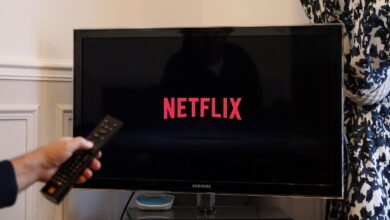

If you sit down to watch your favourite movie or web series and suddenly see Netflix error 121 on your screen, it can quickly ruin your relaxing time. Many users face this issue when they try to stream content on their smart TV, mobile device, or streaming stick. The good news is that Netflix error 121 is a common playback error and usually not serious. In most cases, it can be fixed in just a few minutes with simple steps.
In this blog, we will explain what Netflix error 121 means, why it happens, and how you can fix Netflix error 121 step by step. Everything is written in simple language so anyone can follow it easily. You do not need technical knowledge to solve this problem.
What is Netflix Error 121?
Netflix error 121 is a streaming error that usually appears on smart TVs, streaming devices, or mobile apps when Netflix fails to load properly. Instead of playing your selected content, Netflix shows an error message with code 121. This means the app is unable to process the request because of stored data problems or connection issues.
This error mostly appears on:
- Smart TVs
- Android TV devices
- Streaming sticks
- Mobile devices
- Some gaming consoles
Unlike browser errors, Netflix error 121 is usually related to the Netflix app or device settings rather than your web browser.
What are the common reasons behind Netflix error 121?
Before fixing the issue, it helps to understand why Netflix error 121 appears in the first place. Here are some of the most common causes:
– Corrupted app data
Netflix stores temporary data to improve streaming speed. When this data becomes outdated or corrupted, Netflix error 121 may appear and stop playback.
– Internet connection issues
A weak or unstable internet connection can interrupt communication between your device and Netflix servers. This often triggers Netflix error 121.
– Outdated Netflix app
If your Netflix app is not updated, it may not work properly with the latest system updates. This mismatch can cause Netflix error 121 on your device.
– Device software problems
Outdated system software on your TV or device can also lead to compatibility issues. This sometimes results in Netflix error 121 while streaming.
– Server communication issues
Sometimes the Netflix app fails to communicate properly with the server due to temporary glitches. This can also trigger Netflix error 121.
How Can You Fix Netflix Error 121?
Let’s go through the most effective solutions you can try to fix Netflix error 121. Follow these steps one by one until the problem is solved.
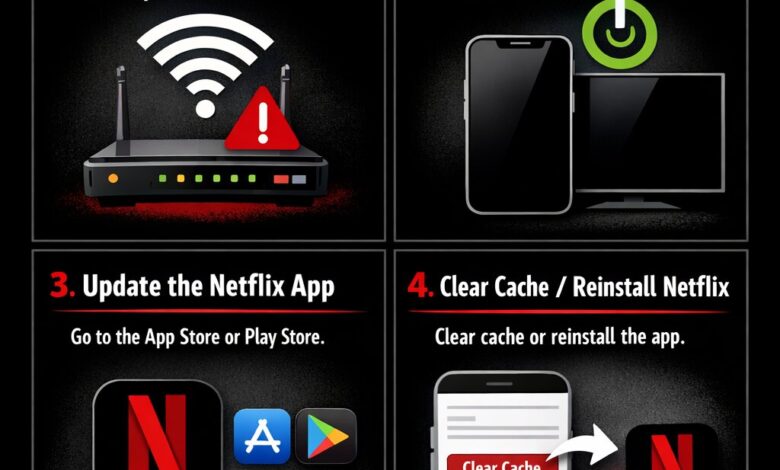
Fix 1: Restart your device
A simple restart can fix many streaming problems, including Netflix error 121.
- First, turn off your device completely.
- Unplug it from the power source.
- Wait for at least 1 minute.
- Plug it back in and turn it on again.
- Open Netflix and try streaming.
Restarting helps clear temporary glitches and refresh the app connection.
Fix 2: Check your internet connection
A stable internet connection is essential for smooth streaming. If your internet is slow or unstable, Netflix error 121 may appear.
— You can try these steps:
- Restart your Wi-Fi router.
- Move your device closer to the router.
- Switch from Wi-Fi to wired connection if possible.
- Run a speed test.
Netflix recommends at least 3 Mbps for standard streaming and 5 Mbps or more for HD content. If your speed is low, improve your connection before trying again.
Fix 3: Clear Netflix app data
Clearing app data removes corrupted files that may cause Netflix error 121. The steps depend on your device.
— On Android TV or mobile:
- Open Settings.
- Go to Apps.
- Select Netflix.
- Tap Storage.
- Click Clear cache and Clear data.
- Restart the app and sign in again.
This method works in most cases and helps fix Netflix error 121 quickly.
Fix 4: Update the Netflix app
Using an outdated app can cause compatibility issues. Updating the app is an easy way to fix Netflix error 121.
- Open your app store.
- Search for Netflix.
- Tap Update if available.
- Restart the app and test playback.
Keeping your app updated ensures it works smoothly with your device.
Fix 5: Update your device software
If your device software is outdated, it may not support the latest Netflix features. Updating your system can help resolve Netflix error 121.
- Go to device Settings.
- Select System or Software update.
- Install any available updates.
- Restart your device.
Once updated, open Netflix and try streaming again.
Fix 6: Sign out and sign back in
Signing out of Netflix and signing in again can refresh your session and fix Netflix error 121.
- Open Netflix.
- Go to Settings.
- Select Sign out.
- Restart the app.
- Sign back in with your account.
This simple step often resolves account-related glitches.
Fix 7: Reinstall the Netflix app
If none of the above steps work, reinstalling the app can help.
- Uninstall Netflix from your device.
- Restart the device.
- Reinstall Netflix from the app store.
- Sign in again.
Reinstalling removes corrupted files and installs a fresh version of the app, which often fixes Netflix error 121 completely.
Does Netflix error 121 affect all devices?
Netflix error 121 usually affects specific devices rather than all devices at once. For example, you may see the error on your smart TV but not on your phone. This confirms that the problem is device-related.
If Netflix works on another device using the same internet connection, then your account is fine. You only need to fix the device showing Netflix error 121.
How can you prevent Netflix error 121 in the future?
Prevention is always better than fixing the issue again later. Here are some simple habits to avoid Netflix error 121 in the future:
- Keep your Netflix app updated.
- Update your device software regularly.
- Restart your device once in a while.
- Maintain a stable internet connection.
- Avoid installing unnecessary apps that slow your device.
- Clear app cache occasionally.
Following these tips will reduce the chances of seeing Netflix error 121 again.
Is Netflix error 121 a server problem?
In most cases, Netflix error 121 is not a server problem. It usually happens due to device or app-related issues. Netflix servers continue to work normally while the error appears only on one device.
However, if Netflix is down worldwide, you may experience temporary streaming issues. You can check Netflix status online to confirm if there is a service outage.
When should you contact Netflix support?
You should contact Netflix support if:
- Netflix error 121 continues after trying all fixes.
- The error appears on multiple devices.
- You cannot sign in to your account.
- You suspect a network restriction.
Netflix support can guide you with advanced troubleshooting steps and check if your account has any issues.
Final thoughts
Netflix error 121 can be annoying, especially when you just want to relax and watch something. But the good news is that this error is usually easy to fix. In most cases, restarting your device, clearing app data, or updating the app will solve the problem quickly.
The main thing to remember is that Netflix error 121 is usually caused by device or app issues, not your account. With the simple steps in this guide, you should be able to fix Netflix error 121 and return to streaming without interruptions.
Now you can sit back, relax, and enjoy your favourite shows again without worrying about Netflix error 121.
For more information visit on our website : Dolphin Techknology