
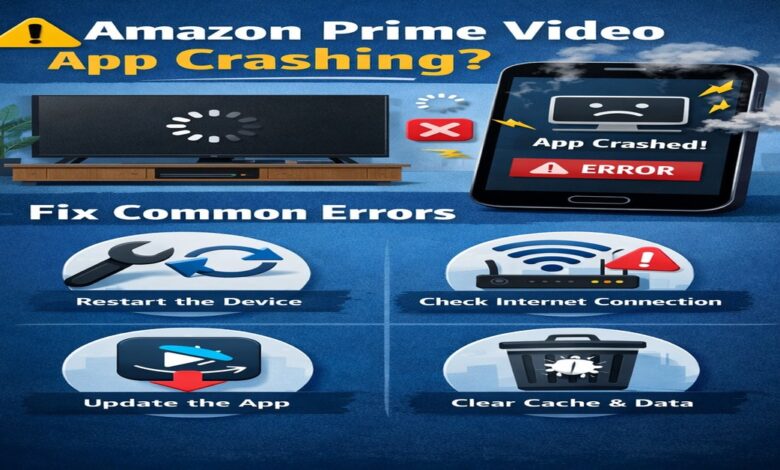
Nothing ruins a relaxing planned movie night faster than the Amazon Prime Video app crashing right after you hit the play button. Once second, the app is doing fine, and the next it freezes, shuts down, or throws an error without explanation. This issue affects users across Android phones, iPhones, smart TVs, Fire TV sticks, and tablets, making it a common but frustrating experience.
If your Amazon Prime app keeps crashing, don’t worry, most of its problems are easy to fix. Some common causes include issues with your internet, outdated software, and corrupted app files. This blog will help you understand why the app may crash and show you simple step-by-step solutions that work around the world.
Why does the Amazon Prime Video app keep crashing, and how can you fix it?
Understanding the root cause will help you fix the problem faster. In most of the cases, the Amazon Prime Video app crashing happens due to the following reasons:
- Weak or unstable internet connection
- Outdated app version
- Corrupted cache or app data
- Low device storage
- Outdated device software
- VPN or proxy interference
- Temporary Amazon server issues
You don’t need any technical skills to solve these problems. Let’s go through the fixes for the Amazon Prime Video app crashing step by step.
Fix 1: Check your Internet connection
Amazon Prime Video needs a strong internet connection to stream without issues. If you network disconnects, even for a moment, the app might crash while loading or playing a video.
You can follow these methods to make your connection stable again:
- First, restart your WiFi router.
- Secondly, switch between WiFi and mobile data.
- Now, avoid streaming on multiple devices at once.
- Lastly, make sure your speed is at least 5 Mbps.
Internet stability is one of the most common reasons for the Amazon Prime App crashing, especially during HD or 4K streaming.
Fix 2: Restart the app and your device
A simple restart can fix temporary glitches that can cause apps to behave unexpectedly.
You can follow these methods to restart the app and your device:
- First, close the Amazon Prime Video app completely.
- Secondly, remove it from background apps.
- Now, restart your phone, TV, or streaming device.
- Lastly, open the app again.
Many users have found that this alone sometimes can resolve the Amazon Prime Video App crashing.
Fix 3: Update the Amazon Prime Video app
Using an outdated version of the app can lead to bugs, crashes, and compatibility issues.
You can follow these methods to update your Amazon Prime Video app:
- First, open the Google Play Store or the Apple App Store.
- Secondly, navigate to Amazon Prime Video.
- Lastly, tap Update.
On smart TVs and Fire TV Stick, you can check the App Store or system settings. Keeping your app updated can reduce Amazon Prime App crashing problems.
Fix 4: Clear cache and app data
On Android phones and tablets, corrupted cache files are a major cause of your app crashes.
You just have to follow these methods to clear the cache and app data from your Android devices.
- First, open settings.
- Secondly, Tap Apps.
- Now, select Amazon Prime Video.
- Go to storage.
- Lastly, tap Clear Cache.
If the problem continues, tap Clear Data, and remember you may need to log in again. This method is highly effective for fixing the Amazon Prime Video App crashing on Android.
Fix 5: Free up storage space
Low storage can prevent apps from running properly. If your device storage is almost full, Prime Video may crash while opening or downloading content.
You just have to follow these methods to free up your storage space:
- First, delete unnecessary unused apps.
- Next, you have to remove old photos and videos that are not important at all.
- Lastly, you can clear your offline Prime Video downloads.
Keeping enough free space can help you by preventing your Amazon Prime app from crashing across all devices.
Fix 6: Update your device software
An outdated operating system can conflict with newer app versions. You just have to follow these methods to update your device software:
- Android OS
- iOS version
- Smart TV firmware
- Firestick system software
System updates include performance improvements that help to stop the Amazon Prime Video app from crashing.
Fix 7: Turn off VPN or Proxy services
VPNs can interfere with Amazon Prime Video due to region restrictions or server conflicts.
You just have to follow these methods to turn off VPN or proxy services:
- First, disable your VPN or proxy.
- Now, restart the app.
- Lastly, you have to test streaming again.
Many users notice immediate improvement once VPNs are turned off, especially when dealing with the Amazon Prime App crashing during playback.
Fix 8: Reinstall the Amazon Prime Video App
If your app continuously crashes despite various updates and cache clearing, reinstalling the app is the best solution. You just have to follow these methods to reinstall the Amazon Prime Video App:
- First, uninstall the Amazon Prime Video App
- Secondly, restart your device.
- Now, reinstall the app from the official store.
- Lastly, log in to the app again.
This helps you to remove corrupted files completely and often fixes persistent Amazon Prime Video app crashing issues.
Fix 9: Check your Amazon Prime Video server status
Sometimes the issue is not on your device. Amazon’s servers can be temporarily down or overloaded sometimes.
If the problem is in the server, then you will notice these signs:
- Your app will crash on multiple devices.
- Your content will fail to load.
- You will notice error messages appearing repeatedly
In such cases, you just have to wait for some time and try again later. Server-related Amazon Prime App crashing usually resolves on its own.
Fix 10: Fix crashing on Smart TVs
Smart TVs struggle a lot with apps due to limited memory or outdated software. You just have to follow these methods to fix the crashing on Smart TVs:
- First, power off the TV and unplug it for 2 minutes.
- Secondly, update your TV firmware.
- Now, clear the app cache if supported.
- Lastly, reinstall the Prime Video app.
Older TVs may face compatibility issues, which can cause repeated Amazon Prime Video App crashing.
Fix 11: Fix the Amazon Prime Video App crashing on Fire TV Stick
Fire TV Stick devices may crash apps when storage is full or when too many apps run in the background.
You just have to follow these methods to fix the crashing on the Fire TV Stick:
- First, Go to Settings > Applications.
- Secondly, clear the cache and data for Prime Video.
- Now, uninstall the unused apps.
- Lastly, restart your Fire TV Stick.
This improves your Fire TV Stick’s performance and reduces the chances of the Amazon Prime App crashing.
Fix 12: Check your Amazon Account status
Sometimes crashes occur due to account-related issues.
You just have to make sure that:
- Your Prime subscription is active.
- You’re not logged in on too many devices.
- Your login details are correct.
Logging out and logging back in can fix account-related Amazon Prime Video App crashing.
How can you prevent your Amazon Prime Video app from crashing in the future?
To avoid your Amazon Prime Video from crashing in the future, you just have to follow these simple habits:
- Keep the app updated always.
- Maintain a stable internet.
- Free up device storage regularly.
- Avoid unreliable VPNs.
- Restart your device occasionally.
These steps will help you to ensure smooth streaming and prevent the Amazon Prime App from crashing in the future.
Final Thoughts
Amazon Prime Video crashing can be frustrating, but it’s usually not a major issue. Most crashes happen because of internet problems, outdated apps, low storage space, or corrupted cache files. You can fix the Amazon Prime app crashes on your phone, smart TV, or streaming device without needing professional help.
Streaming should be easy and enjoyable. Once you resolve these issues, you can return to watching your favorite shows without interruptions.
For more information visit on our site : Dolphin Techknology