How to Clear Cache on Smart TVs: A Complete Step-by-Step Guide

Imagine sitting down after a long day, snacks ready, and your favorite streaming app open, only to find that your Smart TV is running sluggishly. Netflix buffers endlessly, YouTube takes ages to load, and even simple navigation feels delayed. While many people immediately blame their Wi-Fi, the problem is often something else entirely—cache build-up.
Smart TVs, like phones and computers, save temporary files called cache every time you open an app. These files are meant to help by storing your login details, saving previews, and keeping thumbnails ready to load faster. At first, they improve performance, but over time, they accumulate and start to drag the system down.
The good news is that clearing the cache is simple and effective. It restores speed, prevents glitches, and gives your TV a fresh start. In this guide, we will explore what cache really is, why clearing it matters, and step-by-step instructions for different Smart TV brands, including Samsung, LG, Sony, Vizio, and Fire TV.
What Cache Really Is?
Cache can be thought of as your TV’s notepad. Each time you use an app such as Netflix or Hulu, it writes down quick notes like your login information or the thumbnails of shows you recently browsed.
The benefit of cache is faster performance. Since the app already has some information saved, it doesn’t need to reload everything each time you open it. The problem, however, is that this notepad is never fully erased. Over weeks or months, it fills with unnecessary data, much of it no longer useful.
For example, Netflix may save your login details on the first day you use it, which is convenient. But after fifty days, it may also have hundreds of previews and snippets saved that you no longer need. This clutter slows down performance, causes apps to freeze, and can even lead to errors. Clearing the cache erases these leftovers and gives your TV room to function properly again.
Why You Should Clear Your Cache?
You might wonder if clearing the cache is worth the effort. The answer is yes, and the benefits are immediate.
- Faster apps: Streaming platforms like Netflix, Prime Video, and Disney+ open more quickly once old cache files are removed.
- Fewer crashes: Many app freezes or mid-show crashes are caused by corrupted cache files. Removing them eliminates the problem.
- Improved streaming quality: Buffering delays and random drops in resolution often disappear after a cache reset.
- More storage: Smart TVs have limited memory. Cache files take up space that could be used for updates or new apps.
- Better security: Clearing the cache wipes out old tokens and temporary data, reducing potential vulnerabilities.
Think of it as a routine tune-up. Just as cars need oil changes to keep running smoothly, Smart TVs need occasional cache clearing.
How Often Should You Clear Cache?
There is no strict rule, but the more often you use your Smart TV, the more quickly the cache fills up.
- Light users who open one or two apps daily should clear cache about once a month.
- Heavy streamers who use multiple apps daily should clear it every two to three weeks.
- Gamers or testers who frequently download and open different apps may benefit from clearing them once a week.
How to Clear Cache on Different Smart TVs
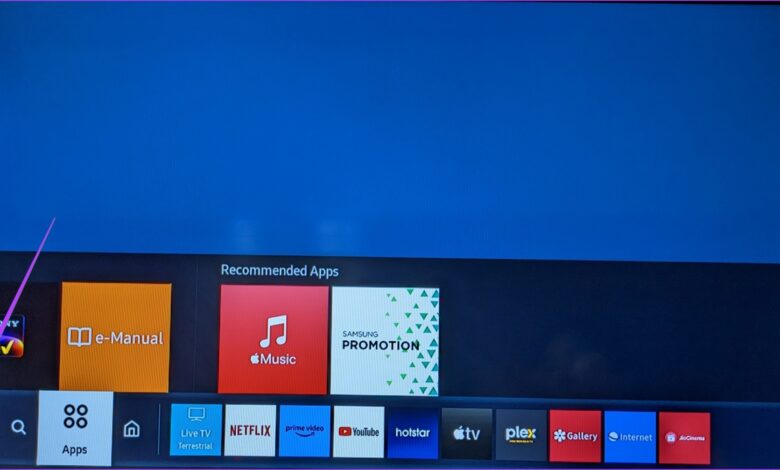
Samsung Smart TVs (Tizen OS)
Samsung makes cache clearing simple with built-in tools.
- Press the Home button on your remote.
- Go to Settings.
- Select Support, then Device Care.
- Choose Manage Storage.
- Select the app you want.
- Click View Details, then Clear Cache.
If performance still lags, choose Clear Data. This is more thorough but will log you out of the app.
LG Smart TVs (WebOS)
LG does not provide a single cache-clearing option, but you can reset apps individually.
- Press Settings on your remote.
- Go to All Settings, then General.
- Select System, then Additional Settings.
- Choose the app.
- Click Clear Cache or restart the app.
If the option is missing, uninstall and reinstall the app to reset its cache.
Android TV and Google TV (Sony, TCL, Hisense, Philips)
For Android-based Smart TVs, clearing cache works much like it does on Android phones.
- Go to Settings.
- Open Apps, then See All Apps.
- Select the app you want.
- Click Clear Cache.
Clear Data is also available, but this completely resets the app, not just its cache.
Vizio Smart TVs
Vizio take a different approach and do not allow individual cache clearing. Instead, you reset the TV.
- Press Menu on the remote.
- Navigate to System, then Reset and Admin.
- Select Clear Memory (Factory Defaults).
This will reset the entire TV, not just apps. If you only want to refresh a specific app, uninstall and reinstall it manually.
Fire TV Edition Smart TVs (Toshiba, Insignia)
Amazon’s Fire OS has a straightforward process.
- From the Home screen, go to Settings.
- Select Applications.
- Choose Manage Installed Applications.
- Pick the app.
- Click Clear Cache.
Universal Methods for Any Smart TV
If your TV brand does not offer direct cache clearing options, try these universal fixes.
- Power cycle: Turn off the TV, unplug it for 30 to 60 seconds, then plug it back in. This clears temporary memory files.
- Uninstall and reinstall apps: This forces a fresh cache reset and works well for apps like Netflix or YouTube.
- Factory reset: As a last resort, restore the TV to factory settings. This erases all apps, accounts, and preferences, so use it only if other options fail.
What to Expect After Clearing the Cache?
After clearing the cache, apps may behave differently at first. Some will log you out, requiring you to sign back in. Others may open more slowly the first time because they are rebuilding their cache. Occasionally, a few settings may reset. These effects are temporary, and within minutes you will notice smoother, faster performance overall.
How to Keep Your Smart TV Fast Long-Term?
Cache clearing helps, but there are additional habits that will keep your Smart TV running like new.
- Install software updates regularly to ensure optimal performance.
- Delete unused apps, since each app consumes storage space even if not in use.
- Make sure your Wi-Fi connection is strong, as many TV issues are actually caused by internet problems.
- Restart your TV occasionally, just as you would reboot a computer or smartphone.
- Limit background apps, avoiding the practice of leaving too many open at once.
By combining these practices with regular cache clearing, you can extend the life of your Smart TV and enjoy consistent performance.
Conclusion
Smart TVs have transformed living rooms into entertainment hubs, but even advanced technology slows down when overloaded with clutter. Clear Cache on Smart TVs build-up is one of the most common reasons for lagging apps, buffering, and crashes. Fortunately, clearing cache is quick, easy, and effective.
Whether you own a Samsung, LG, Sony, Vizio, or Fire TV, knowing how to clear cache helps restore speed, improve streaming quality, and free up valuable storage. The next time your TV feels sluggish or an app refuses to cooperate, you now have the steps to refresh it and get back to your shows without frustration.
Clearing cache is a small habit with a big payoff, and it keeps your Smart TV running at its best for years to come.
For more information visit on our website : Dolphin Techknology