
Step-by-Step Guide to Optimize Your Wi-Fi Router Settings for Better Speed

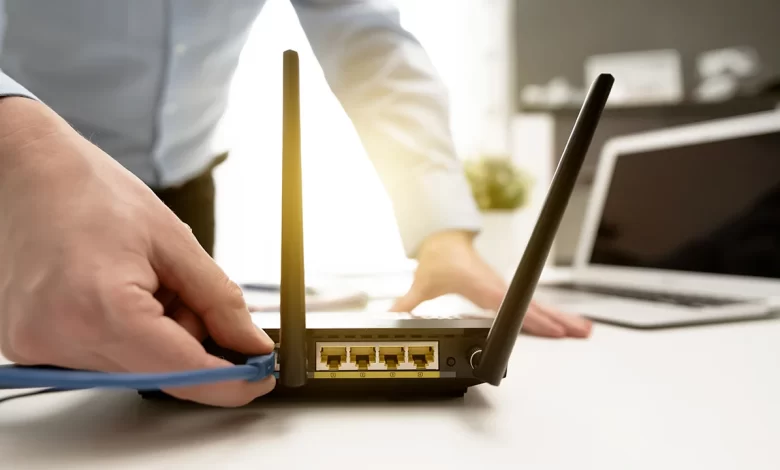
Is the speed of your internet connection slower than your expectations? Can’t you tolerate it even with the activation of a high-speed plan? If yes, you are not alone. The reality is that your Wi-Fi speed does not rely on your internet provider. Apart from that, it also relies heavily on how you configure your router. Once you know how to optimise your Wi-Fi router settings, it can help you drastically improve performance, minimise buffering, and ensure smoother online experiences.
In this comprehensive guide, you will walk through a practical and step-by-step procedure so that you can boost your internet speed right from your home or office. So, what are you waiting for? It’s time to hit the jackpot and jump into the reliable steps that will let you know how to optimise your Wi-Fi Router Settings for Better Speed.
Key Steps For Optimizing Your Wi-Fi Router Settings
Are you not aware of the steps to optimise your Wi-Fi router settings? If not, you need not be worried at all. We have curated this section for you that comprises all the steps to guide you in accomplishing the process more efficiently. What do you think? Don’t run the horses of your mind and just take a dive into the key details mentioned below –
Step 1: Access Your Router’s Admin Page
In the first step, you need to optimise your wi-fi router settings so that you can log into the admin panel of your router. Here are the steps that you need to have an eye on –
- Initially, open a browser and type in your router’s IP address. This is usually something like 192.168.0.1 or 192.168.1.1.
- Now, enter your login credentials. If you haven’t brought changes in them, they’ll surely be the default. It is often found on a sticker on the back of your router.
Pro Tip: To prevent illegal access, you need to change your default login details.
Step 2: Update Your Router’s Firmware
By upgrading your router’s firmware, you can fix bugs and also enhance performance. An obsolete firmware can slow down your connection or expose you to several security threats.
- First of all, navigate to the firmware section in the settings of your router.
- Now, you have to click “Check for Updates” and install the latest version.
Note: So, regular firmware updates are really essential if you have the desire to bring optimisation to the settings of your Wi-Fi router. This is the best for better speed and security.
Step 3: Select the Right Frequency Band
Now, you are required to choose the appropriate frequency band. The latest routers offer you dual-band or even tri-band options. These are mentioned below –
2.4 GHz:
It covers a longer range but at slower speeds.
5 GHz:
This frequency band offers you faster speeds but over shorter distances.
6 GHz (on newer Wi-Fi 6e routers):
It is faster than other frequency bands, but with minimal interference.
Note: If you’re close to the router, it will be easier for you to switch your device to the 5 GHz or 6 GHz band. This way, you can improve speed.
Step 4: Change the Channel to Reduce Interference
Wi-Fi interruption can occur due to overlapping channels. It happens specifically in crowded neighbourhoods. To bring changes to the channel, all you need to do is –
- In the first step, you need to use apps such as WiFi Analyser to check which channels are the least congested.
- Later on, you are required to use a less crowded channel. It is such as 1, 6, or 11 on 2.4 GHz.
Note: This is the simplest tweak, which is one of the most effective ways to optimise your Wi-Fi router settings. Apart from that, you can also reduce signal noise.
Step 5: Enable Quality of Service (QOS)
QOS settings enable you to prioritise traffic. This way, you can easily give more bandwidth to significant tasks such as video calls, streaming, or gaming.
- To kick-start the process, you need to go to the QOS settings in your router admin page.
- Now, set high priority for your most-used apps or devices.
Note: This will be helpful to you to ensure smooth performance, even when multiple devices are online.
Step 6: Disable Unused Features
A few of the routers feature consuming processing power. In this case, they don’t offer much value for home users. The steps to disable unused features are as follows –
- Initially, you have to turn off WPS known as Wi-Fi Protected Setup.
- In the next step, you are required to disable remote management unless needed.
- After that, it is essential for you to limit the number of connected devices.
Note: By trimming unused features, you can ensure that your router is completely focused on performance.
Step 7: Improve Placement and Antenna Positioning
The replacement of your router plays a major role in signal strength. Here are the key steps that you have to follow for the same –
- At the beginning of the process, you need to place your router in a central, elevated, open space.
- Try to avoid corners, metal objects, and microwaves.
- Then, adjust antennas at different angles. You can do it easily if the antennas are external.
Note: It is true that physical location is often overlooked. But it’s critical when you have an aim to optimise your Wi-Fi router settings for consistent signal quality.
Step 8: Use a Guest Network for Visitors
If there are so many devices on your main network, it can surely affect speed. To set up a
separate guest network, the steps that you need to follow are –
- In the first step, you need to keep your primary network fast and secure.
- Now, limit bandwidth usage for temporary users.
Step 9: Upgrade to a Modern Router if Needed
Have you followed all the steps given above? Still, your speed is subpar? If yes, your router may be outdated.
- Initially, you need to consider upgrading to a Wi-Fi 6 or Wi-Fi 6e router.
- Now, look for mesh network systems. You need to do this if you have a large home or multiple floors.
Conclusion: Small Changes, Big Results
In short, with the help of just a few tweaks, you can successfully optimize your Wi-Fi router settings. Additionally, you will enjoy smoother browsing, streaming, gaming, and video conferencing.
For more information visit on our website : Dolphin Techknology