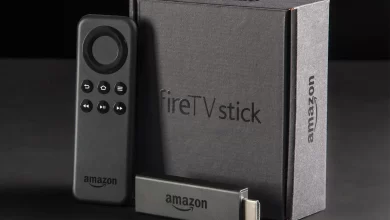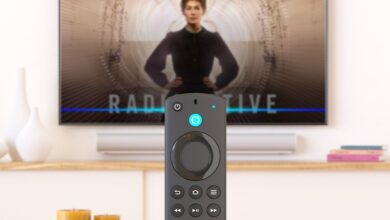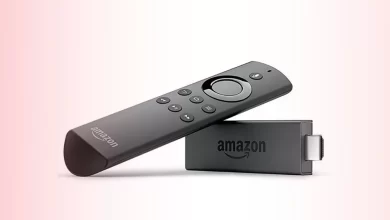

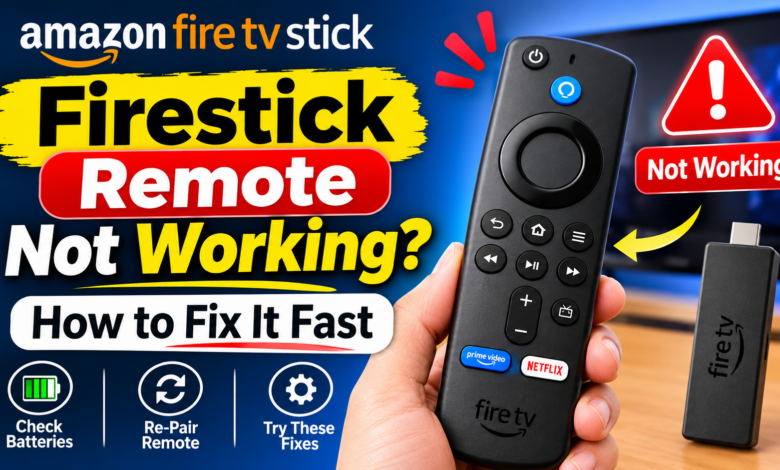
A Fire TV Stick makes streaming simple, but a failed remote can interrupt your plans. Common causes include Firestick Remote Not Working, weak batteries, lost pairing, a frozen device, interference, or TV control settings. Try these checks before buying a replacement.
Why Is My Firestick Remote Not Working?
If every button fails, check batteries, pairing, and device responsiveness. If only volume or power buttons fail, check TV equipment control instead.
Before troubleshooting, confirm the television responds to its own remote and the Fire TV Stick has power. This helps separate a remote issue from a TV input, power, or display problem before changing other settings.
Test the remote after each step. Instructions vary by model, so consult Amazon’s guidance if button combinations differ.
Fixes to Do When Your Firestick Remote Is Not Working
Fix 1: Replace the Remote Batteries
Weak batteries are a common reason a Firestick remote stops responding.
- Remove both batteries and install a fresh, matching pair, following the plus and minus symbols inside the compartment.
- Compatible AAA alkaline batteries are a good starting point for many Alexa Voice Remotes.
- Do not mix old and new batteries.
- Check the contacts for dirt or corrosion, and test several buttons.
Fix 2: Restart the Fire TV Stick
A frozen Fire TV Stick can make a working remote appear broken.
- Disconnect the power cable, wait about 60 seconds, and reconnect it.
- If possible, use the supplied power adapter and cable rather than a television USB port, which may not provide consistent power.
- Wait for the home screen, then test the remote.
- Avoid unplugging the device during an update.
Fix 3: Move Closer and Reduce Interference
Keep the remote within roughly 10 feet (3 metres) of the Fire TV Stick while troubleshooting.
- Remove obstructions and check the Stick’s power and HDMI connection.
- Most Fire TV Stick remotes use a wireless connection for navigation and do not need to point directly at the Stick.
- However, some power and volume functions use infrared, depending on the remote and equipment.
- If navigation works but TV controls do not, troubleshoot those functions separately.
Fix 4: Pair the Remote Again
The remote may have lost its wireless connection.
- Keep it close to the Fire TV Stick, then press and hold the Home button for about 10 seconds. Watch the television for a pairing message.
- On some models, pairing starts automatically after fresh batteries are inserted.
- If pairing fails, restart the Stick and try again at the pairing prompt.
- Confirm remote compatibility.
Fix 5: Reset a Compatible Firestick Remote
If batteries and pairing do not help, a reset may work. The sequence differs by model, so check Amazon’s official instructions first.
- For many Fire TV remotes, unplug the Fire TV device, hold the Left, Menu, and Back buttons together for 12 seconds, release them, and wait for five seconds.
- Remove the batteries, reconnect the device, and wait for the detection prompt.
- Reinsert them and press Home.
- Reset procedures vary by model.
Fix 6: Firestick Remote Not Working With TV
If the remote controls menus but cannot switch the TV on, adjust volume, or mute sound, check equipment control.
- Open Fire TV Settings and look for Equipment Control to review your television or soundbar setup.
- Check HDMI-CEC settings on both the TV and Fire TV Stick. Manufacturers may call this feature Anynet+, Simplink, BRAVIA Sync, or EasyLink. CEC can coordinate power and input switching, but support varies.
- If volume or power still fails, rerun equipment setup and select the correct TV or audio device.
- If there is no picture, select the correct HDMI input with the TV remote.
- Reseat the Stick or try another port; a blank screen does not prove the remote is faulty.
Fix 7: Use the Fire TV App as a Temporary Remote
If the physical remote fails, the official Fire TV mobile app may help you navigate menus.
- Install it on a compatible phone, connect the phone to the same Wi-Fi network as the Fire TV device, and follow the prompts to select your device.
- Setup requirements may vary.
- The app may not work before setup is complete or if the Stick is offline.
Fix 8: Check for Stuck or Damaged Buttons
Press each button gently and check whether any is stuck, sticky, or damaged.
- Clean the exterior with a soft, dry cloth.
- Do not pour liquid into the buttons or battery compartment, and do not dismantle the remote unless the manufacturer recommends it.
- Drop or liquid damage may require replacement.
- Stop using a remote that appears unsafe.
Fix 9: Diagnose the Remote LED, If Available
Some compatible remotes offer a troubleshooting mode.
- On supported models, press Rewind and Right together for three seconds, then press Menu.
- Press a button and check the LED signal.
- LED colours may indicate low batteries or pairing problems.
- Support varies by model.
When Should You Replace the Remote?
If the remote remains unresponsive after fresh batteries, restarting, pairing, and the correct reset procedure, check compatibility and contact Amazon support.
Replace a damaged remote or one that repeatedly fails after confirming compatibility.
Final Thoughts
When your Firestick remote is not working, start with fresh batteries, a device restart, and pairing. Then check compatibility, reset instructions, and TV equipment settings if only certain buttons fail. These steps can solve common problems without unnecessary purchases. If the remote still does not respond, consult the official Amazon support or choose a compatible replacement.
Frequently Asked Questions
Q1: Why is my Firestick remote not working even with new batteries?
Ans: The remote may be unpaired, the Fire TV Stick may be frozen, or the batteries may be installed incorrectly. Restart the device, verify battery polarity, and hold Home to try pairing again.
Q2: Why is my Firestick remote not working with TV volume?
Ans: Navigation may work while TV controls fail because equipment control is not configured correctly. Check the TV or soundbar setup and HDMI-CEC settings, then run equipment setup again.
Q3: Can I use my Fire TV Stick without its remote?
Ans: Yes, the Fire TV mobile app can often provide temporary control when your phone and Fire TV device meet the app’s connection requirements.
Read More: www.dolphintechknology.com