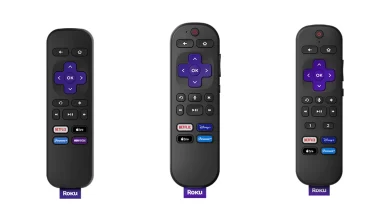

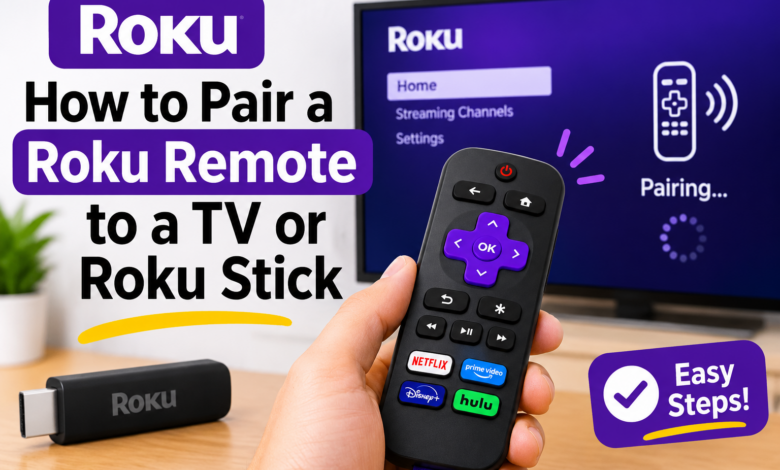
Pairing a Roku remote is usually quick, but the steps depend on your remote type. Follow this guide to connect Pair a Roku Remote to a TV and fix common problems. A standard infrared remote usually has no pairing button and must point directly at the Roku device. A Roku voice remote generally connects wirelessly. Depending on the model, its pairing button may be inside the battery compartment or on the back.
Some newer remotes use a different setup process, so check the instructions if your remote has no button. Make sure the remote is compatible with your Roku device.
How to Pair a Roku Remote?
Follow these steps for a compatible Roku voice remote:
- Turn on your Roku TV or streaming player and wait for the home screen.
- Insert fresh batteries, or charge the remote if it has a rechargeable battery.
- Find the pairing button inside the battery compartment or on the back.
- Press and hold it for about five seconds, or until the status light flashes.
- Keep the remote close to the Roku device and wait for the pairing message.
- Follow the on-screen instructions and allow the process to finish.
If your remote has no pairing button, it may be an infrared model or one with a different setup process. Check the instructions for your model instead of assuming it is faulty.
How to Pair a Roku Remote to a TV?
- If you have a Roku TV, turn it on, install batteries or charge the remote, and hold the pairing button until its light flashes. Wait for the television to confirm the connection.
- If you mean using a Roku remote with a television from another brand, note that a Roku remote is primarily designed to control a Roku player or Roku TV.
- Some voice remotes can also control TV power and volume after setup. On your Roku device, open Settings, choose Remotes & devices, then Remotes, and select your remote if that option appears. Follow the prompts to configure TV controls.
- A standard infrared Roku remote does not automatically pair with any television. For a Roku Streaming Stick connected to a non-Roku TV, pair the remote with the stick first, then configure power and volume controls if your remote supports them.
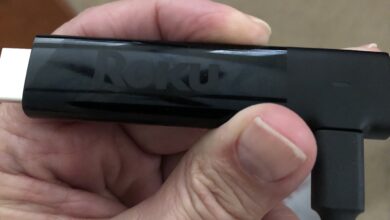
How to Pair a Roku Remote to a Roku Stick?
Connect the Roku Streaming Stick to an HDMI port and power it according to the setup instructions.
- Switch the TV to the correct HDMI input.
- When the Roku setup screen appears, insert batteries or charge the compatible voice remote.
- Hold the pairing button for about five seconds until the status light flashes. Wait for the on-screen confirmation and keep the remote near the stick.
- If the stick is already set up but the remote has disconnected, restart the stick if possible and repeat the steps.
- Check that it has power and is not stuck on a loading screen.
If you cannot navigate the display, try the Roku mobile app as a temporary remote when your phone and Roku device can connect to the same network.
How to Pair a Roku Remote Without a Pairing Button?
A remote without a pairing button may use infrared. Point it directly at the Roku player or the receiver on the front of the Roku TV, and make sure nothing blocks the signal.
- Replace weak batteries and test the buttons from nearby.
- Some newer rechargeable voice remotes use a different setup method.
- Check the official instructions for your remote and device.
- Do not assume that holding random buttons will start pairing; the correct procedure depends on the model.
Fix Common Roku Remote Pairing Problems
If pairing fails, try these checks:
- Check power: Replace disposable batteries with a fresh pair, or fully charge a rechargeable remote.
- Restart Roku: Unplug the device for about ten seconds, reconnect it, and wait for the home screen.
- Repeat pairing: Hold the pairing button until the light flashes, then wait for the prompt.
- Reduce interference: Move the remote closer and temporarily move other wireless devices away if problems continue.
- Inspect batteries: Check their direction and make sure the contacts are clean and undamaged.
- Check compatibility: Confirm that the remote supports your Roku model.
- Try the mobile app: Use the Roku app temporarily if your phone and player are on the same Wi-Fi network and the app can find the device.
Can You Pair a Roku Remote Without Wi-Fi?
A compatible wireless Roku remote can generally pair with the Roku device without your phone joining Wi-Fi. However, the mobile app requires your phone and Roku device to connect to the same network.
When to Replace Your Roku Remote?
Consider replacing the remote if fresh batteries or a full charge do not help, buttons are damaged, or pairing still fails after you confirm compatibility and follow the correct steps. Infrared, wireless voice, and rechargeable remotes may not be interchangeable.
Final Thoughts
To pair a Roku remote, identify its type, turn on your Roku device, and follow the correct process. For a compatible voice remote, hold the pairing button until the status light flashes, then follow the screen prompts. When learning how to pair a Roku remote to a TV or Roku Stick, remember that the remote connects to the Roku device first; TV power and volume controls may need separate setup. Check batteries, compatibility, and model instructions if pairing fails.
If pairing still fails, consult Roku support for model-specific steps before replacing hardware.
Frequently Asked Questions
Q1: How do I put my Roku remote in pairing mode?
Ans: Insert fresh batteries or charge your remote. Press and hold the pairing button until the status light flashes. Keep the remote near your Roku device and wait for the pairing confirmation.
Q2: How to pair a Roku remote to a TV?
Ans: Turn on your Roku TV and hold the compatible remote’s pairing button until its status light flashes. Wait for the TV to confirm the connection. If you use a Roku player with a different TV brand, pair the remote with the Roku device first.
Q3: How to pair a Roku remote to a Roku Stick?
Ans: Connect your Roku Streaming Stick, switch the TV to the correct HDMI input, and power on the device. Hold the compatible voice remote’s pairing button until its light flashes, then follow the on-screen instructions.
How to Pair a Roku Remote to a TV or Roku Stick
Pairing a Roku remote is usually quick, but the steps depend on your remote type. Follow this guide to connect your remote to a Roku device and fix common problems. A standard infrared remote usually has no pairing button and must point directly at the Roku device. A Roku voice remote generally connects wirelessly. Depending on the model, its pairing button may be inside the battery compartment or on the back.
Some newer remotes use a different setup process, so check the instructions if your remote has no button. Make sure the remote is compatible with your Roku device.
How to Pair a Roku Remote?
Follow these steps for a compatible Roku voice remote:
- Turn on your Roku TV or streaming player and wait for the home screen.
- Insert fresh batteries, or charge the remote if it has a rechargeable battery.
- Find the pairing button inside the battery compartment or on the back.
- Press and hold it for about five seconds, or until the status light flashes.
- Keep the remote close to the Roku device and wait for the pairing message.
- Follow the on-screen instructions and allow the process to finish.
If your remote has no pairing button, it may be an infrared model or one with a different setup process. Check the instructions for your model instead of assuming it is faulty.
How to Pair a Roku Remote to a TV?
- If you have a Roku TV, turn it on, install batteries or charge the remote, and hold the pairing button until its light flashes. Wait for the television to confirm the connection.
- If you mean using a Roku remote with a television from another brand, note that a Roku remote is primarily designed to control a Roku player or Roku TV.
- Some voice remotes can also control TV power and volume after setup. On your Roku device, open Settings, choose Remotes & devices, then Remotes, and select your remote if that option appears. Follow the prompts to configure TV controls.
- A standard infrared Roku remote does not automatically pair with any television. For a Roku Streaming Stick connected to a non-Roku TV, pair the remote with the stick first, then configure power and volume controls if your remote supports them.
How to Pair a Roku Remote to a Roku Stick?
Connect the Roku Streaming Stick to an HDMI port and power it according to the setup instructions.
- Switch the TV to the correct HDMI input.
- When the Roku setup screen appears, insert batteries or charge the compatible voice remote.
- Hold the pairing button for about five seconds until the status light flashes. Wait for the on-screen confirmation and keep the remote near the stick.
- If the stick is already set up but the remote has disconnected, restart the stick if possible and repeat the steps.
- Check that it has power and is not stuck on a loading screen.
If you cannot navigate the display, try the Roku mobile app as a temporary remote when your phone and Roku device can connect to the same network.
How to Pair a Roku Remote Without a Pairing Button?
A remote without a pairing button may use infrared. Point it directly at the Roku player or the receiver on the front of the Roku TV, and make sure nothing blocks the signal.
- Replace weak batteries and test the buttons from nearby.
- Some newer rechargeable voice remotes use a different setup method.
- Check the official instructions for your remote and device.
- Do not assume that holding random buttons will start pairing; the correct procedure depends on the model.
Fix Common Roku Remote Pairing Problems
If pairing fails, try these checks:
- Check power: Replace disposable batteries with a fresh pair, or fully charge a rechargeable remote.
- Restart Roku: Unplug the device for about ten seconds, reconnect it, and wait for the home screen.
- Repeat pairing: Hold the pairing button until the light flashes, then wait for the prompt.
- Reduce interference: Move the remote closer and temporarily move other wireless devices away if problems continue.
- Inspect batteries: Check their direction and make sure the contacts are clean and undamaged.
- Check compatibility: Confirm that the remote supports your Roku model.
- Try the mobile app: Use the Roku app temporarily if your phone and player are on the same Wi-Fi network and the app can find the device.
Can You Pair a Roku Remote Without Wi-Fi?
A compatible wireless Roku remote can generally pair with the Roku device without your phone joining Wi-Fi. However, the mobile app requires your phone and Roku device to connect to the same network.
When to Replace Your Roku Remote?
Consider replacing the remote if fresh batteries or a full charge do not help, buttons are damaged, or pairing still fails after you confirm compatibility and follow the correct steps. Infrared, wireless voice, and rechargeable remotes may not be interchangeable.
Final Thoughts
To pair a Roku remote, identify its type, turn on your Roku device, and follow the correct process. For a compatible voice remote, hold the pairing button until the status light flashes, then follow the screen prompts. When learning how to pair a Roku remote to a TV or Roku Stick, remember that the remote connects to the Roku device first; TV power and volume controls may need separate setup. Check batteries, compatibility, and model instructions if pairing fails.
If pairing still fails, consult Roku support for model-specific steps before replacing hardware.
Frequently Asked Questions
Q1: How do I put my Roku remote in pairing mode?
Ans: Insert fresh batteries or charge your remote. Press and hold the pairing button until the status light flashes. Keep the remote near your Roku device and wait for the pairing confirmation.
Q2: How to pair a Roku remote to a TV?
Ans: Turn on your Roku TV and hold the compatible remote’s pairing button until its status light flashes. Wait for the TV to confirm the connection. If you use a Roku player with a different TV brand, pair the remote with the Roku device first.
Q3: How to pair a Roku remote to a Roku Stick?
Ans: Connect your Roku Streaming Stick, switch the TV to the correct HDMI input, and power on the device. Hold the compatible voice remote’s pairing button until its light flashes, then follow the on-screen instructions.
Read More: www.dolphintechknology.com